

System API Tokens
System API Tokens provide cluster-level management access to Self-Hosted LogScale instances, offering permissions for cluster management, health checks, configuration storage, and system-level controls without granting access to organization or repository data. LogScale system permissions and role-based tokens control access to cluster resources and determine which cluster operations users can perform.
System tokens provide access to manage a self-hosted LogScale instance at the cluster level. They do not provide access to an organization or to the data stored in any repository. Because they provide such a high level of access, the available permissions are limited and are designed to support top-level management and access to the cluster. Access to the repository or the organization are separately managed through the Repository and View API Tokens and Organization API Tokens respectively.
System-level permissions include:
Cluster management, including node management, cluster health checks and configuration bucket storage credentials
System permissions, user names, and system repositories
System tokens are managed from the page:
View System Tokens
To manage and view tokens for a cluster:
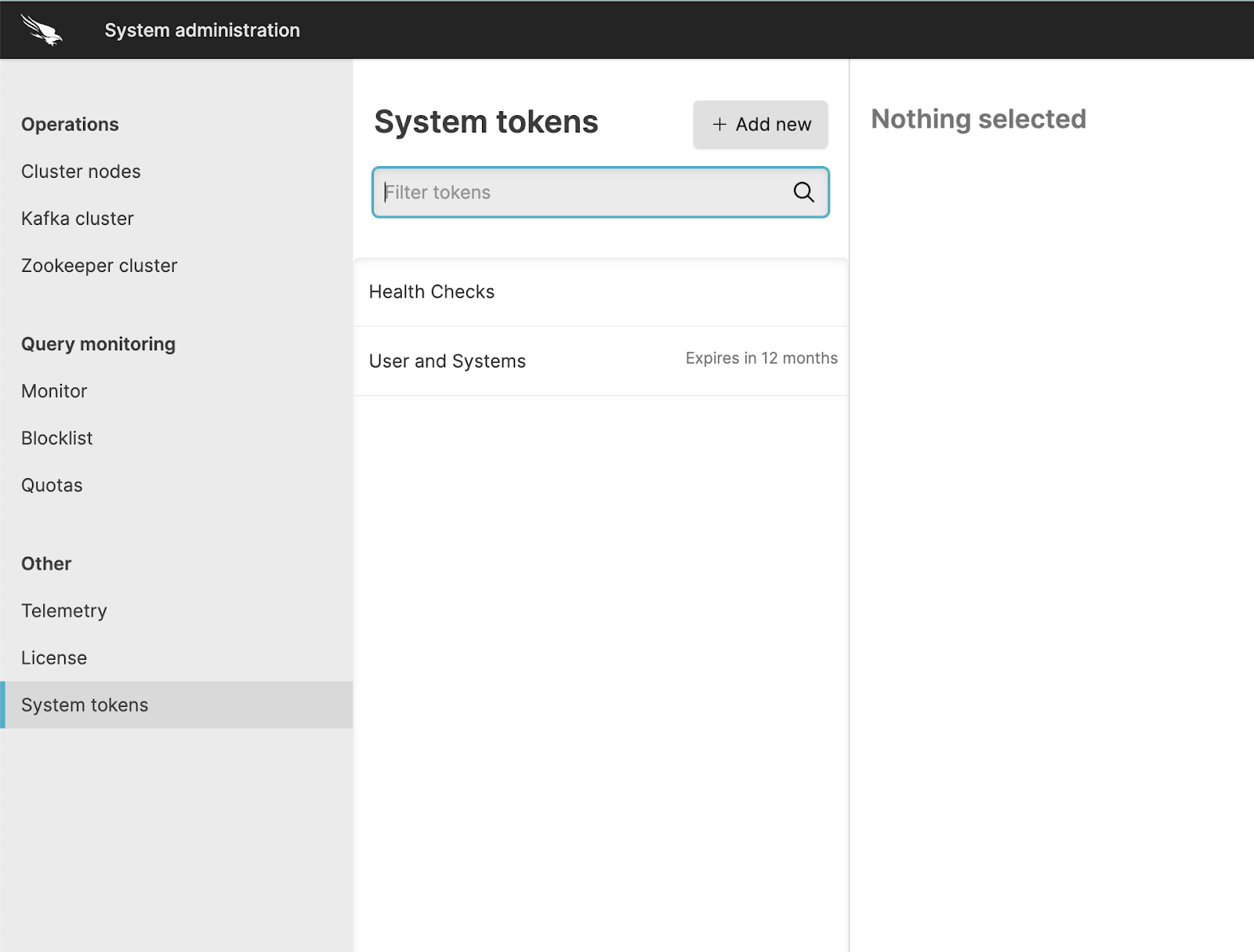 |
The list of tokens shows all currently active tokens and if configured, the expiry duration of the token. Expired tokens are shown in the list for up to 5 minutes after they have expired.
You can filter the list of tokens by using the Filter tokens search box to select the tokens by name.
Selecting a token displays the token details. For more information, see Manage System Tokens.
To create a new token, click the button; for more information on creating new tokens, see Create System API Tokens.
Create System API Tokens
Creating a new system token will generate a new token string that can be used to manage the cluster. Because they provide such a high level of access that includes the ability to create organizations and create users, creating restricted permission tokens with a short expiration date is recommended. This approach helps ensure that your LogScale instance remains secure.
System API tokens have the following parameters that will be unique to each API token created:
The permissions selected for the token provide granular access to the specific area of API functionality. For example, granting the specific permission Change bucket storage only provides the ability to change how data is stored; it does not control retention times or provide access to the bucket data.
System tokens can be given an expiration time expressed as the number of minutes, hours, or days from creation.
An IP filter can be applied to limit access to a specific IP address or network. For more information, see IP Filters.
The expiry and IP filter configuration can be enforced through a security policy. For more information about system token security policies, see System tokens security policies.
To create a new System API token:
Click .
Give the token a name.
Select the permissions that you want the token to support. Note that you can select as many permissions as required for the API token. For information on the permissions and what API endpoints they support, see Cluster Management Permissions.
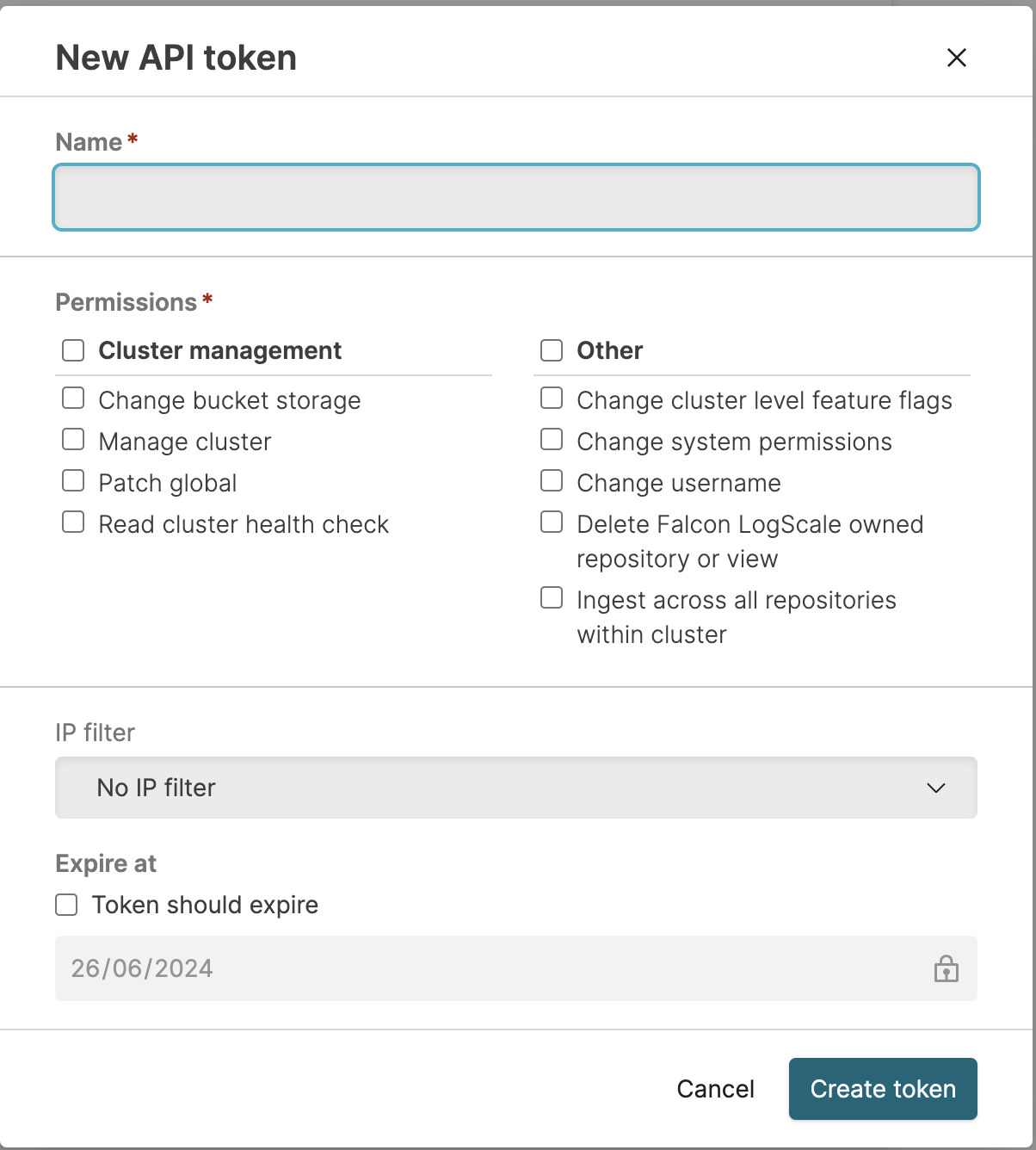
If the security policy allows you to set a custom IP filter, you can select the named IP filter from the pop-up. For more information on IP filtering, see IP Filters and Security policies.
If the security policy allows, you can set an expiration for the API token, based on the number of minutes, hours, or days until the API token expires. If the security policy does not specify an expiration, you can optionally create an API token without an expiry time.
Click to create the token. This shares the API token string and you can then copy the string to your clipboard. This is the only time the API token string will be shared, so copy the token string and store it in a safe place.
Manage System Tokens
System tokens may be modified depending on the settings within the Security policies. If the Update permissions setting is enabled, an existing repository token can be modified to update the permissions granted. In addition, all tokens can be renewed or deleted.
To view the details for an existing token, select the token from the list in the System API Tokens interface. This will show a summary of the organization API token, expiry, permissions, and IP filter information:
Expiry information is shown first in the summary in both the duration and an explicit date and time when the token will expire. Expiry information cannot be changed.
Permission information is shown with each permission and a corresponding green tick (enabled) and red cross (denied). Permission information cannot be changed unless the Update permissions option is enabled within the System tokens security policies.
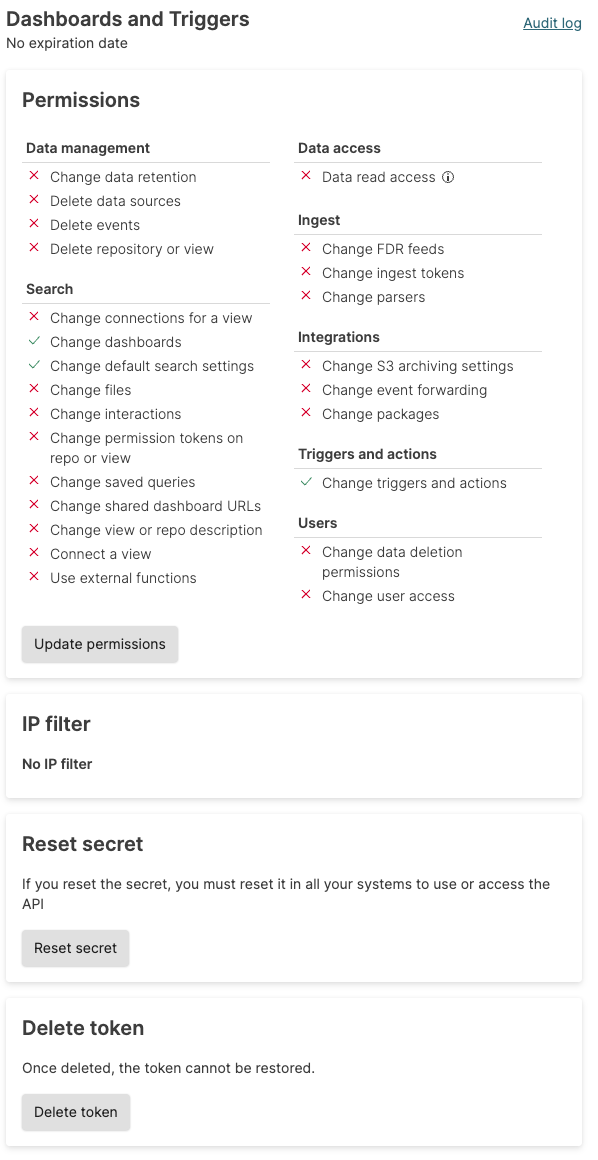
If editing the permissions is enabled, click the button.
If the permissions can be updated; click to save the updated permissions.
To recreate the API token string, click the button. This regenerates the token string so that it can be copied. Resetting the token in this way immediately invalidates the previous token string. The new string will need to be used.
To delete the API token, click the button. You will be asked to confirm the action. Once deleted, the API token is no longer valid and all API operations with the deleted token will fail.