

Manage Existing Saved Searches
Security Requirements and Controls
Delete saved queriespermissionUpdate saved queriespermission
The Search interface organizes your
queries in three tabs under the
button: recent, saved and favorite queries.
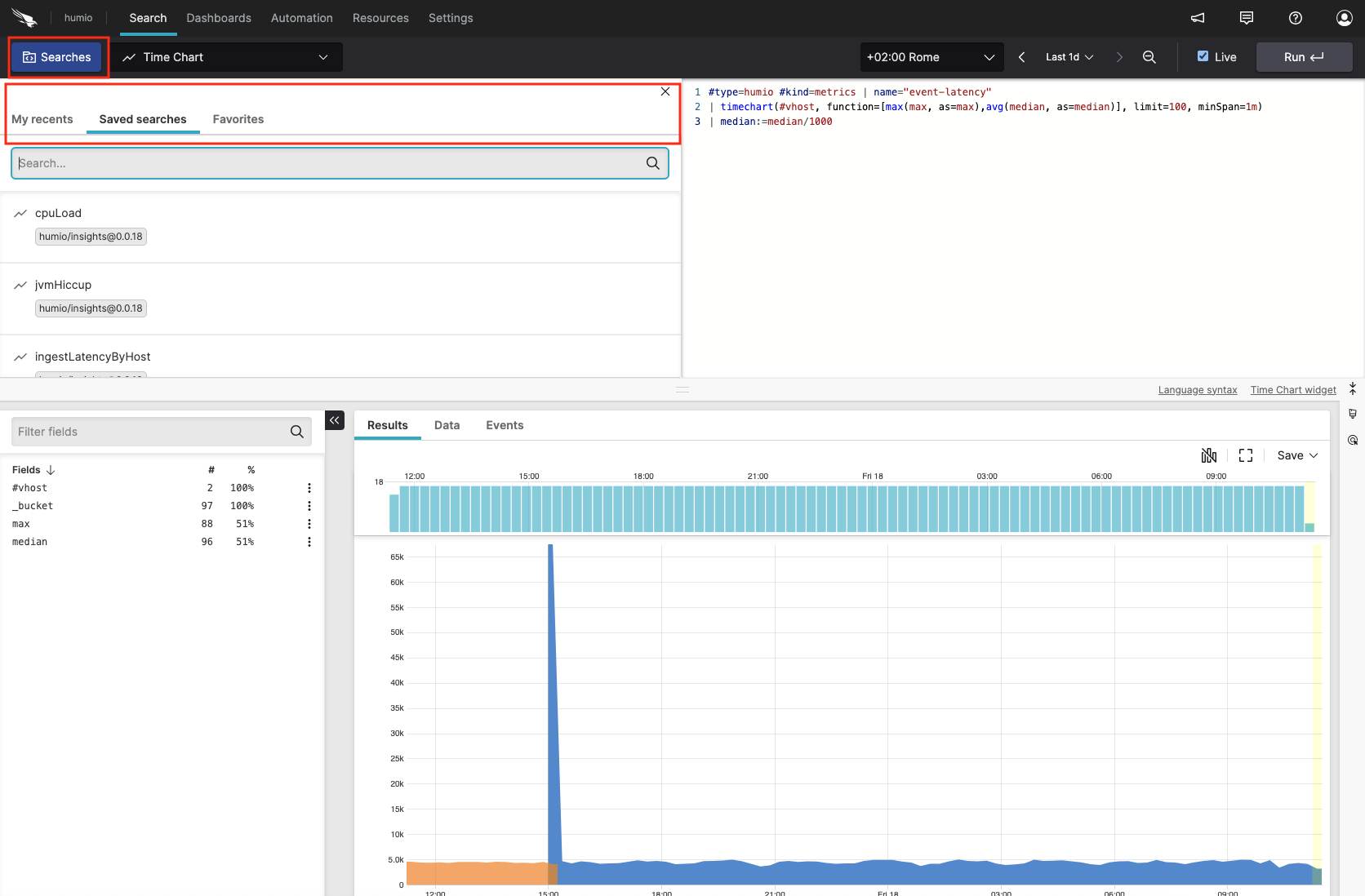 |
Figure 135. Saved Searches
My recents tab. Lists recently run queries divided by date. You may either:
Click on a recent query in the list to get a preview of the query in read-only mode, from which you can:
click to make it running again
save it as is to make it a new saved search (see Create a Saved Search).
load it to the query editor side panel to make changes before running your query again.
Hover over a recent query to:
run it again without any preview by clicking
select from the three-dot menu to save it as is
select from the three-dot menu to preview or edit the query in the side panel before running it again
Figure 136. Playing with Recent Queries
Saved searches tab. Shows all of your saved queries. This list also displays the labels and the package name each query comes from.
The sorting of the Saved Searches list is organized by Package, Favourite status (user selected), and the name. The status of each saved search (whether it has been selected as a favorite) is not shown in the display.
You may either click or hover over a saved query in the list to access several functionalities:
adds the query as a function (
$"MySavedQuery"()) to the pipeline at the cursor position in the side panel. For more information about using saved queries as functions, see Saved Searches (User Functions).If using crossview assets, inserts saved query references using this default format instead:
$"query://:My Saved Query"().Note
Resource names that don't match the
$"query://:My Saved Query"()format will continue to be resolved to the current view/repository as normal.If using crossview assets, the full reference path will be included in the query when it is saved as a function. For more information, see Resolving Resources to a Different Named View or Repository.
loads the query to the query editor side panel without running the query.
runs the query.
brings the query back to the
Searchpage in Editing saved search mode.Stars/unstars the saved query. Starring the saved query will make it appear in the Favorites tab.
exports the saved query as a file in yaml format.
allows for copying a saved query to the same repository or to a different repository/view.
allows for sharing the saved search with another user, see Grant Permissions for Saved Queries for more information.
deletes the saved query.
Hint
Clicking instead of hovering a query allows you to preview the query in read-only mode and copy the query string, before taking any of the above actions.
Figure 137. Playing with Saved Queries
Favorites tab. Lists the saved searches that have been marked as favorite. The functionalities available for saved searches also apply for favorites searches.