

Write a Parser
Once you have created your parser, you will be presented with an editor.
 |
Figure 63. Parser Editor
On the left side is the script, and on the right are the test cases you can run the script on. You can click on a test case after running tests to see the event it produced.
Writing a good parser starts by knowing what your logs look like. So it is best to gather some sample log events. Such samples may be taken from log files for example, or if you are already ingesting some data, you may be able to use the contents of the @rawstring fields.
As @rawstring can be changed during parsing, and different methods of sending logs may imply different data formats, you should verify that your samples are representative, as soon as you start sending real data.
Then, write your parser script. Note that the main difference between
writing a parser and writing a search query is that you cannot use
aggregate functions like groupBy().
Parsers can make use of crossview refernces to saved searches. For
example, $"query://viewName:queryName"() or
$"query://viewName/scope/package:queryName"() to refer to
an existing saved search or a saved search within an existing package.
Parsers can also be accessed from other views using
$"parser://viewName:parserName"() or
$"parser://viewName/scope/package:parserName"(). For emore
information, see Resolving Resources to a Different Named View or Repository.
Write Test Cases
Add samples as tests for your parser, where each test case represents an ingested event, with the contents of the test case being available in the @rawstring field during parsing.
Additionally you can Import test cases from a file in appends or overwrite mode.
Click and write test case logic in the textbox.
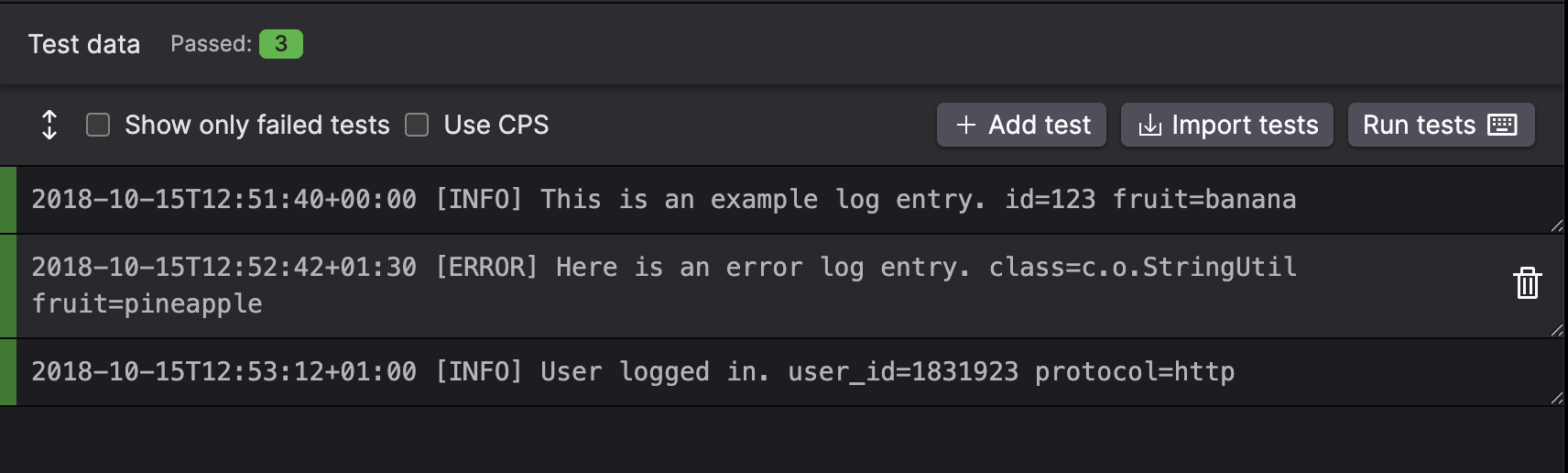
Figure 64. Test Case for a Parser
Once you have added some tests to your parser, click the button to see the output that your parser produced for each of them. See Figure 65, “Test Case Output after Parsing” for an example.
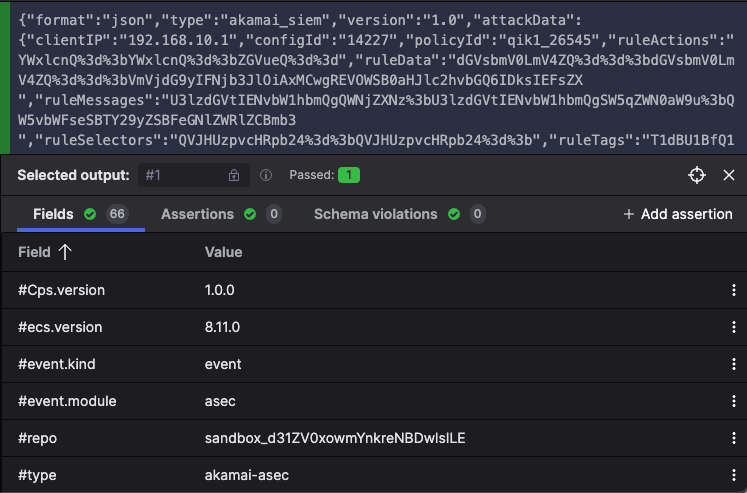
Figure 65. Test Case Output after Parsing
Import Test Cases
Import previously defined test case from a file.
This feature imports raw strings from a text file and uses them as test cases, with each string separated by new lines.
Click , the Import tests pop-up is displayed.
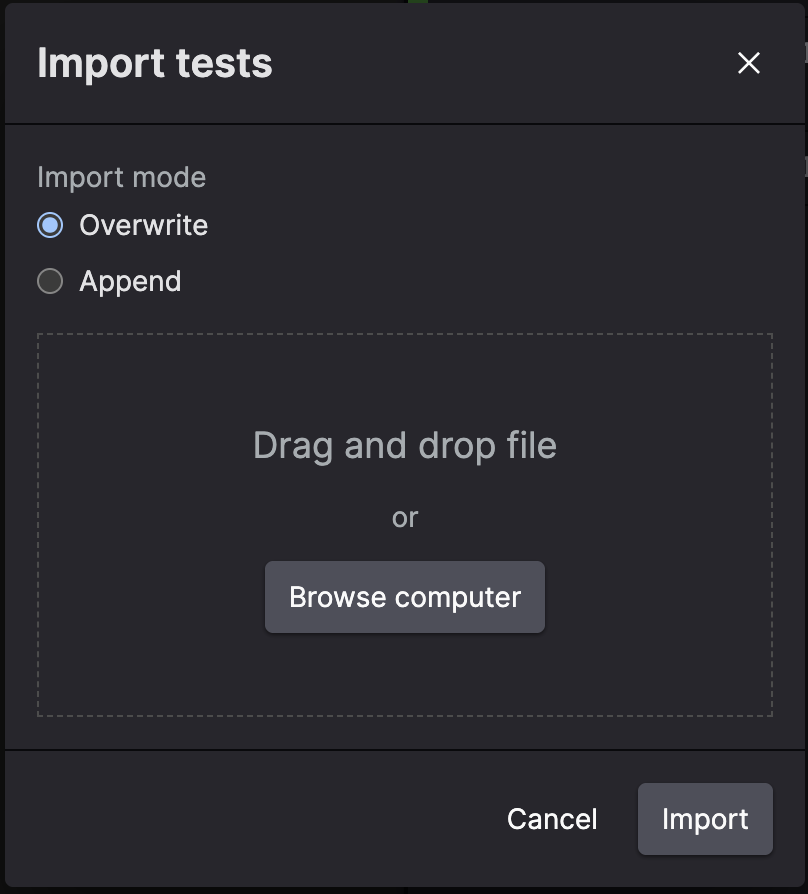
Figure 66. Import Test Case for a Parser
Click either:
to add the tests to any existing test for the parser.
to overwrite all the test for the parser with those being imported.
Browse for or drag and drop a file and click .
The maximum allowed limit is 30 test cases. In mode, if the total sum of test cases exceeds the maximum, test cases are added from the text file (top to bottom) until reaching the 30-case limit. In mode, only the first 30 test cases from the file are imported.
Errors, Validation Checks, and Warnings
When writing a parser, the test case output might show some validation messages, or return failed tests whenever errors or warnings occur. All these are output in different situations and produce a different behavior in the parser:
Errors. The parser fails to parse incoming data, and LogScale adds @error fields to the event. See Parser Errors for more details.
Validation checks. The parser does not fail: these are messages intended as guidelines on how you should write your parser. For example, arrays must be contiguous and have a
0thindex. Fields that are prefixed with#must be configured to be tagged (to avoid falsely tagged fields). See Parsers Validation Errors for more details.Optionally, you can also validate if your parser normalizes test data, as described in Normalize and Validate Against CPS Schema. Fixing parser validation errors is recommended before deploying your parser, but it does not prevent you from saving your parser script.
Warnings. The parser does not fail and continue parsing the event, but the test case shows a warning.
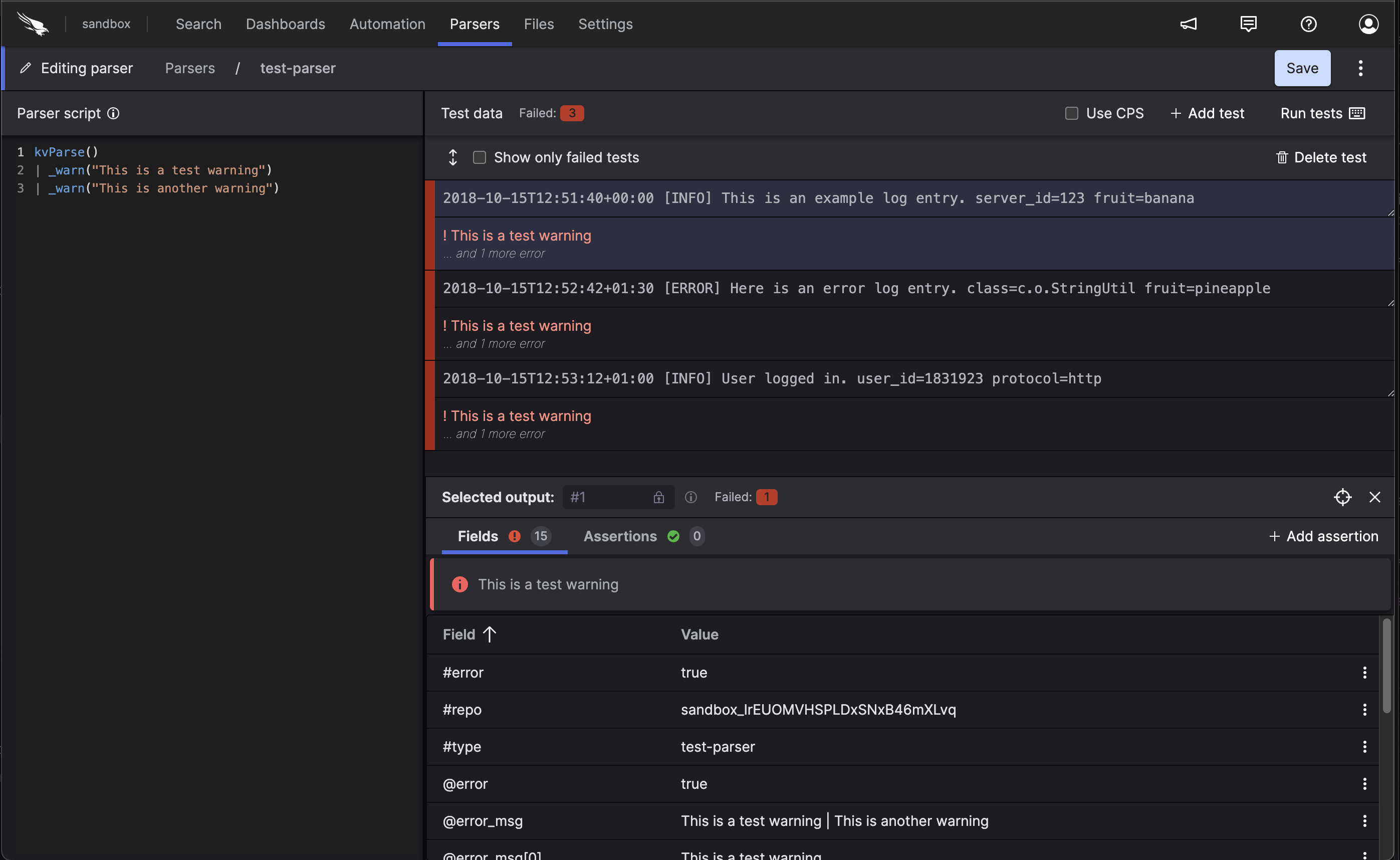
Figure 67. Warnings
Such warnings are generated when certain lookup query functions used for writing the parser have invalid files: specifically, when files referenced in
match()andcidr()functions are missing or invalid, or when functions that rely on external resources are missing such dependency — for example, IOC database temporary unavailable in theioc:lookup()function.Warnings are reported in the already existing error fields (@error, @event_parsed, @error_msg, and @error_msg[]).
On the
Searchpage, LogScale adds an @error field to the ingested events:
Figure 68. Error field added to ingested event
Assertions
In addition to seeing the concrete output the parser produced, you can also add Assertions on the output. This means that you can specify that you expect certain fields to contain certain values, and the tests will fail if that does not hold.
This is especially useful if you need to apply regular expressions, as they can be tricky to get right the first time, but also tricky to change over time without introducing errors. See Figure 69, “Assertions” for an example.
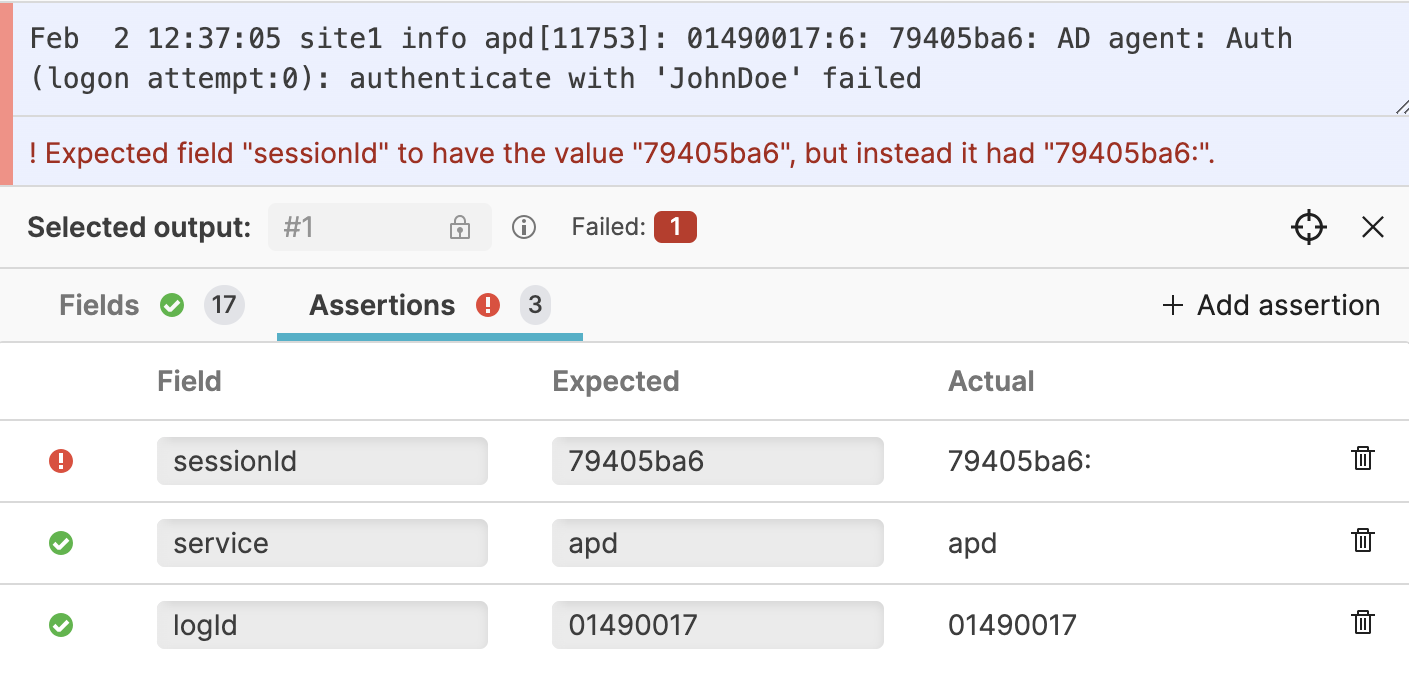 |
Figure 69. Assertions
Next Steps
Once you have your parser script created you can start using it by Ingest Tokens.
You can also learn about how parsers can help speed up queries by Parsing Event Tags.
For information on how to manage the parsers in a repository, see Manage Parsers.