

Understand Organizations
An organization is the basic entity used to organize your LogScale instance.
In LogScale, an organization is a top-level container that:
Serves as the primary boundary for data isolation and access control.
Contains repositories where actual log data is stored.
Manages users, groups, and their permissions.
Maintains organization-specific settings and configurations.
The following diagram illustrates an organization as the top-level container with repositories within the organization that store log data as well as components (views, dashboards, alerts, parsers). There is also user and group management with permissions, organization-wide settings, package management for extending functionality, and ingest configuration for data sources. The hierarchical structure shows how all components exist within the organization boundary, with repositories serving as the primary containers for log data and its associated configurations.
Organization owners
Within an organization, one or more users will be assigned as an Organization Owner. Organization owners have full access to all available actions within the organization and can perform the actions in Organization Settings as well as Users and Permissions.
Organization Settings
Security Requirements and Controls
Change organization settingspermission
As an owner of an organization in LogScale, you have additional rights and privileges to set the configuration of your organization. From any screen of the LogScale User Interface, click the user menu icon and select .
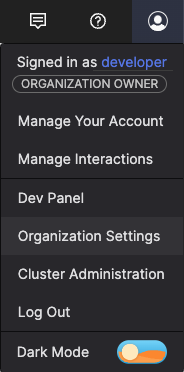 |
Figure 26. Account Menu
Once clicked, you see a screen similar to the one shown in Figure 27, “Organization Settings” , depending on your system configuration and any feature flags that might be selected.
You can use the GraphQL API to get information on an organization with the organization() query field. You'd use the updateOrganizationInfo() mutation field to make changes. Use the parentOrganizations() and childOrganizations() query fields for information on parent and child organizations. To link or unlink an organization to another, to make one a child of a parent, you can use the linkChildOrganization() and unlinkChildOrganization() GraphQL mutation fields.
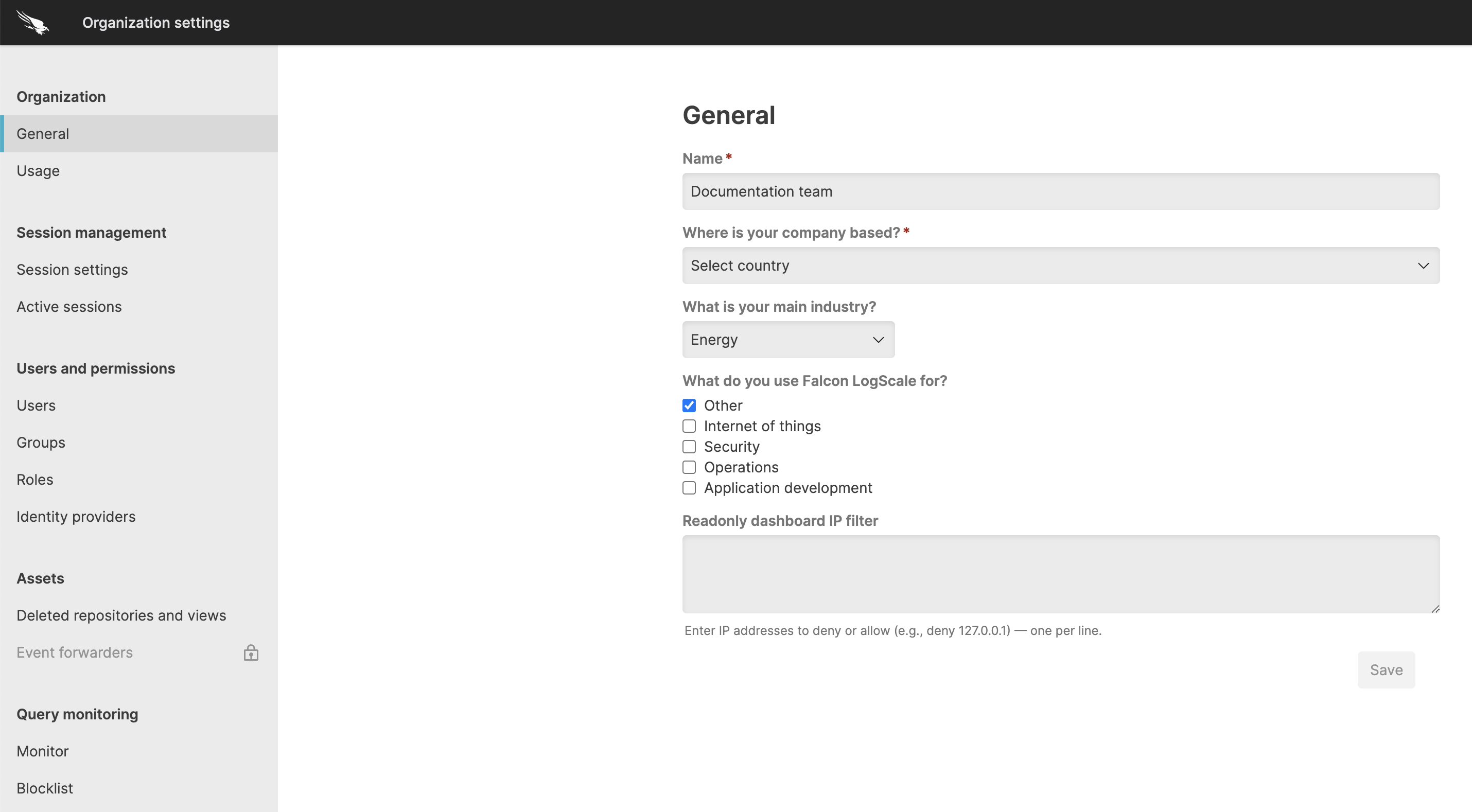 |
Figure 27. Organization Settings
You can manage the following organization settings.
Organization Settingsincludes:provides information about the organization's current data usage and license limits. For more information, see Measure and Manage Ingest Usage.
enable administrators to configure additional levels of security around specific areas of functionality within LogScale. For more information, see Security policies.
to configure inactivity timeout and re-login requirements. For more information, see Session management.
with details on the currently active sessions such as user, device, IP address, login date. For more information, see Manage active sessions.
to configure and manage users. For more information, see Manage Users.
to manage groups and assign users to them. For more information, see Manage Groups.
to assign different roles to users. For more information, see Manage Roles.
provide specific permissions and limits when using and accessing LogScale through any of the APIs, in this case related to organization management. For more information, see Organization API Tokens.
lets you set IP filter rules to block network access for specific areas of LogScale. For more information, see IP Filters.
includes:
shows you all repositories and views deleted in the last seven days, and provides the option to restore a delete repository or view, or to see the audit log details for information about why the repository or view was deleted. For information about how to delete a repository or view, see Delete a Repository or View.
is used to configure event forwarders to forward events that are ingested into LogScale to other systems that require parts of the data, such as Machine Learning, for example, while still logging everything in a central place. For more information about event forwarding, see Event Forwarding.
includes:
is used to create data models to apply at query time, simplifying query writing and making it easier to search and correlate data originating from different sources. For more information about field aliasing, see Field Aliasing.