

Delete a Repository or View
Security Requirements and Controls
Delete all repositoriespermissionDelete all viewspermissionDelete repository or viewpermission
You are able to both delete and restore Repositories and Views, given that the user has the right permissions and that LogScale is configured properly.
Prerequisites
The following prerequisites are required.
Needed Permissions and Privileges
Users or tokens who have one of the following privileges or permissions can delete repositories and views:
Root users
Organization owners (on LogScale Cloud)
DeleteAllViews or DeleteAllRepositories organization level permission
DeleteRepositoryOrView view permission on the given repository/view
Configuration
If Bucket Storage is configured, data in repositories will be delated according to the retention rules. However, some data will be restorable for some time:
LogScale Cloud
Data may be restored over the retention time for up to 7 days
LogScale On-Prem
For on premise installations, we have 3 different environment variables that control the restorability. We recommend the default values.
The following configuration variables and rules apply for this process:
MS_BEFORE_DATASPACE_CONTENT_DELETIONmust be less thanDAYS_BEFORE_TOMBSTONE_DELETION- 1 day.DELETE_BACKUP_AFTER_MILLISmust be less thanMS_BEFORE_DATASPACE_CONTENT_DELETION- 1 day.It is the
DELETE_BACKUP_AFTER_MILLISenvironment variable that decides the restorability time, because it indicates the time in which files will start to be deleted and data will not be recoverable after.
Deleting a Repository
Navigate to the repository's Danger zone.
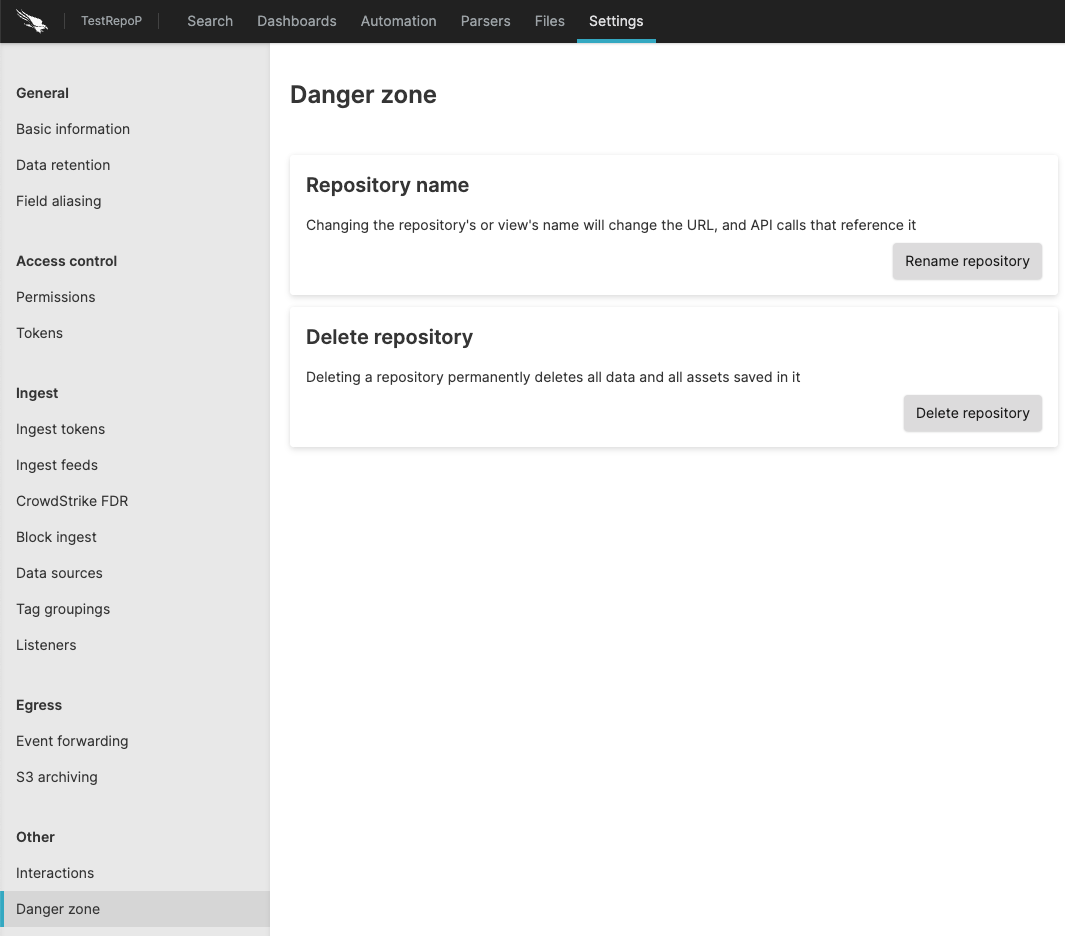
Figure 32. Repo Danger Zone
A dialog will appear that will let you know that the repository must have had no ingest for at least 24 hours. If that's not the case, you cannot proceed with deleting the repository. If the repository fulfills this condition, you can click
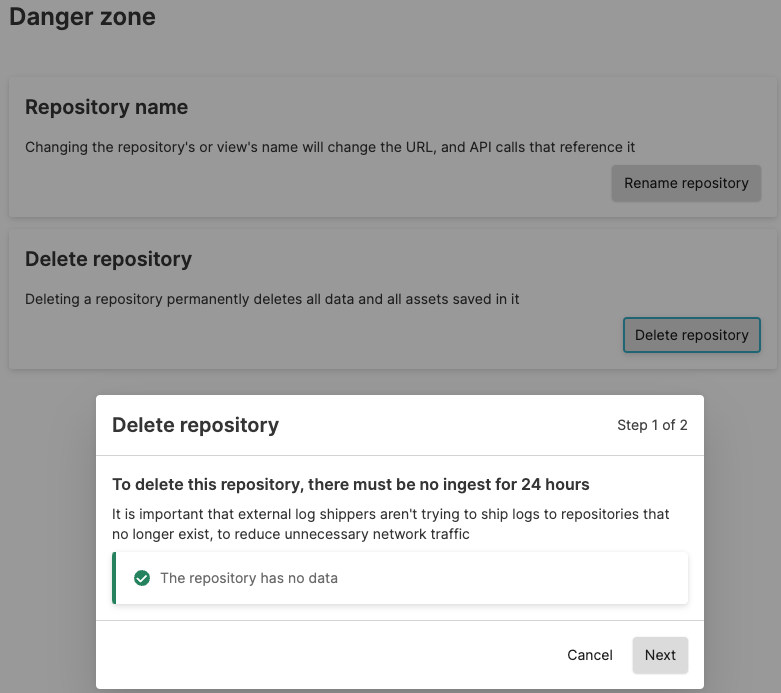
Figure 33. Delete Repository Dialog
You will be prompted to provide:
Repository name is the name of the repository. Required.
Audit log message is the reason for deleting the repository. This message will appear in the deletion audit log event. Optional.
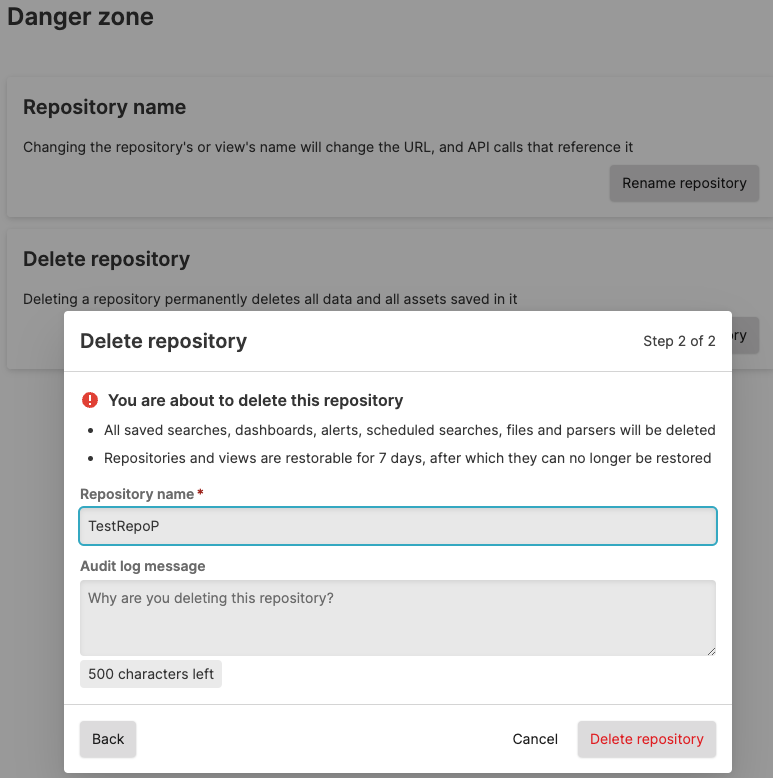
Figure 34. Audit log
Click
If restoring repositories is possible, you will be redirected to the Deleted repositories and views section under
Organization
            settings
. If restoring is not possible, you will be redirected to the home page.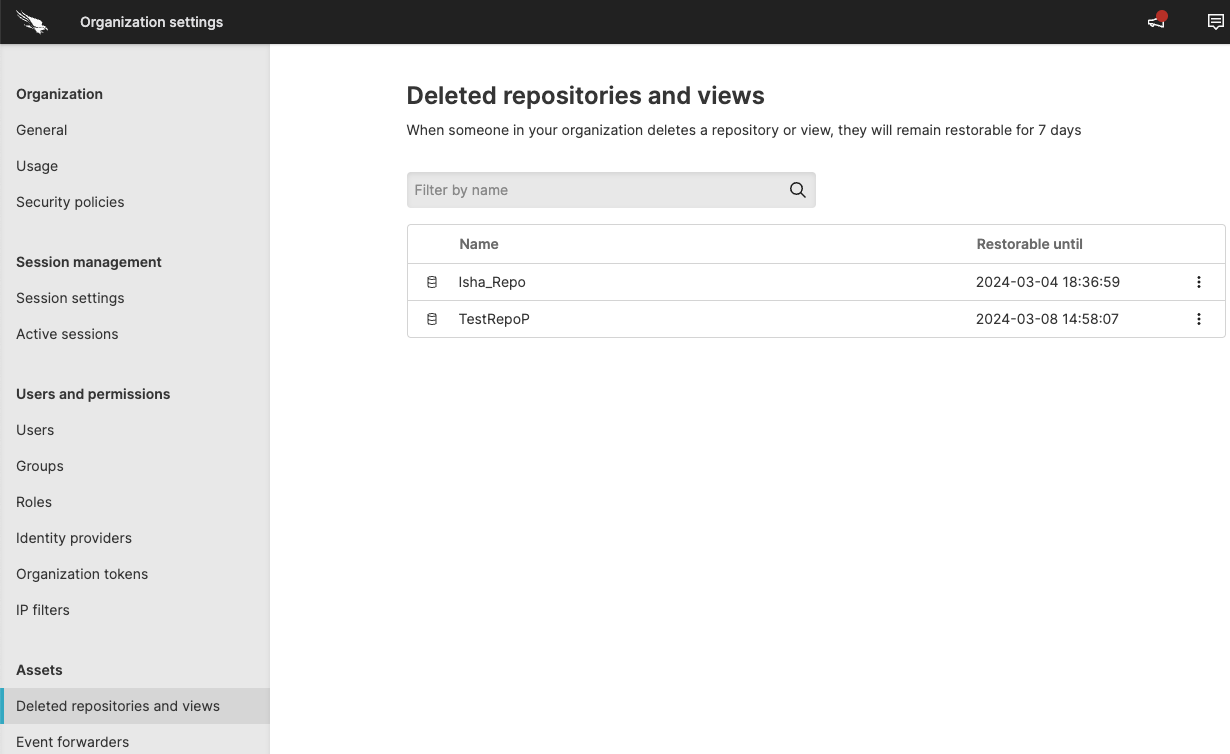
Figure 35. Deleted Views and Repositories Page
Deleting a View
Navigate to the view's Danger zone.
You will be prompted to provide:
View name is the name of the view. Required.
Audit log message is the reason for deleting the repository. This message will appear in the deletion audit log event. Optional.
Click
If restoring repositories is possible, you will be redirected to the Deleted repositories and views section under
Organization
            settings
. If restoring is not possible, you will be redirected to the home page.
Restoring a Repository or View
To restore a repository or view, Bucket storage has to be configured, and the user needs to have one of the following permissions or roles:
Root users
Organization owners (on cloud editions)
Navigate to → . If you don't see this page, restoring is not possible either due to Bucket storage not being configured, or due to lacking permissions.
Find the repository/view that you want to restore in the table of deleted repositories and views.
Click on the three dots on the far right column.
Click in the dropdown menu
Click
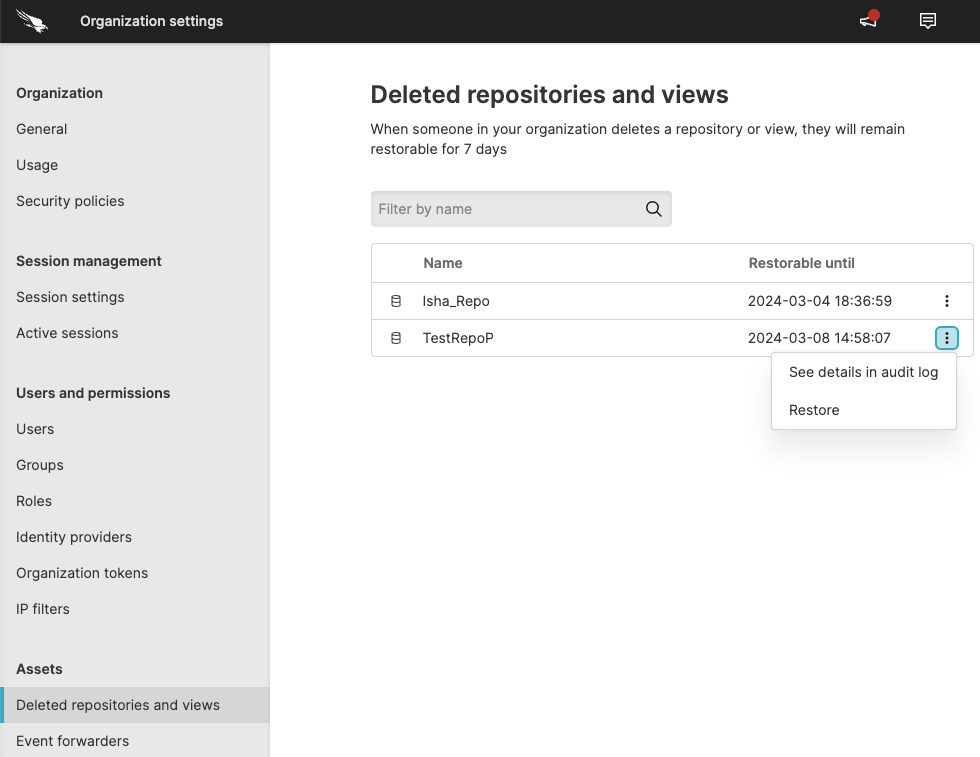 |
Figure 36. Restoring Repositories and Views