Grant Permissions for Saved Queries
Security Requirements and Controls
Change user accesspermission
Sometimes you might want to collaborate with another user on a saved query, but that user does not have permission to saved queries in the view. If you have permissions to do so, you can grant permissions to that user to edit and delete a particular saved query in a view. For more information about asset permissions, see Asset permissions.
If you do not have
Change user access
permission on the repository, you will see a list of users only (no
groups) that already have at least Read permissions on the repository.
You can select from these users and give them more permissions (up to
the same permissions you have).
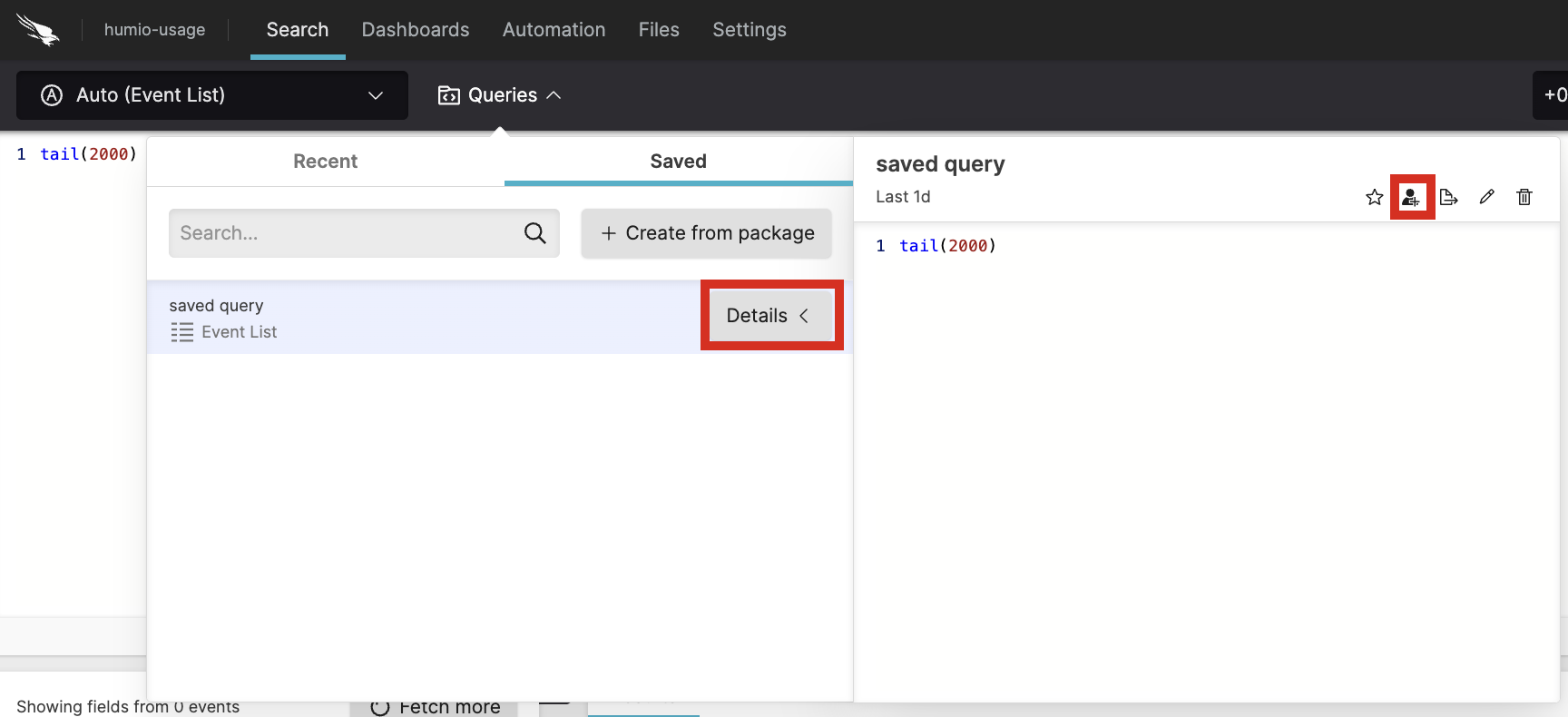
To grant access to edit or delete a saved query to another user or group:
The creator of an asset and regular users can share the same permissions that they have to the asset with users who already have read access to the view. You cannot share access with users who do not have read access to the view. You cannot share access with groups at all.
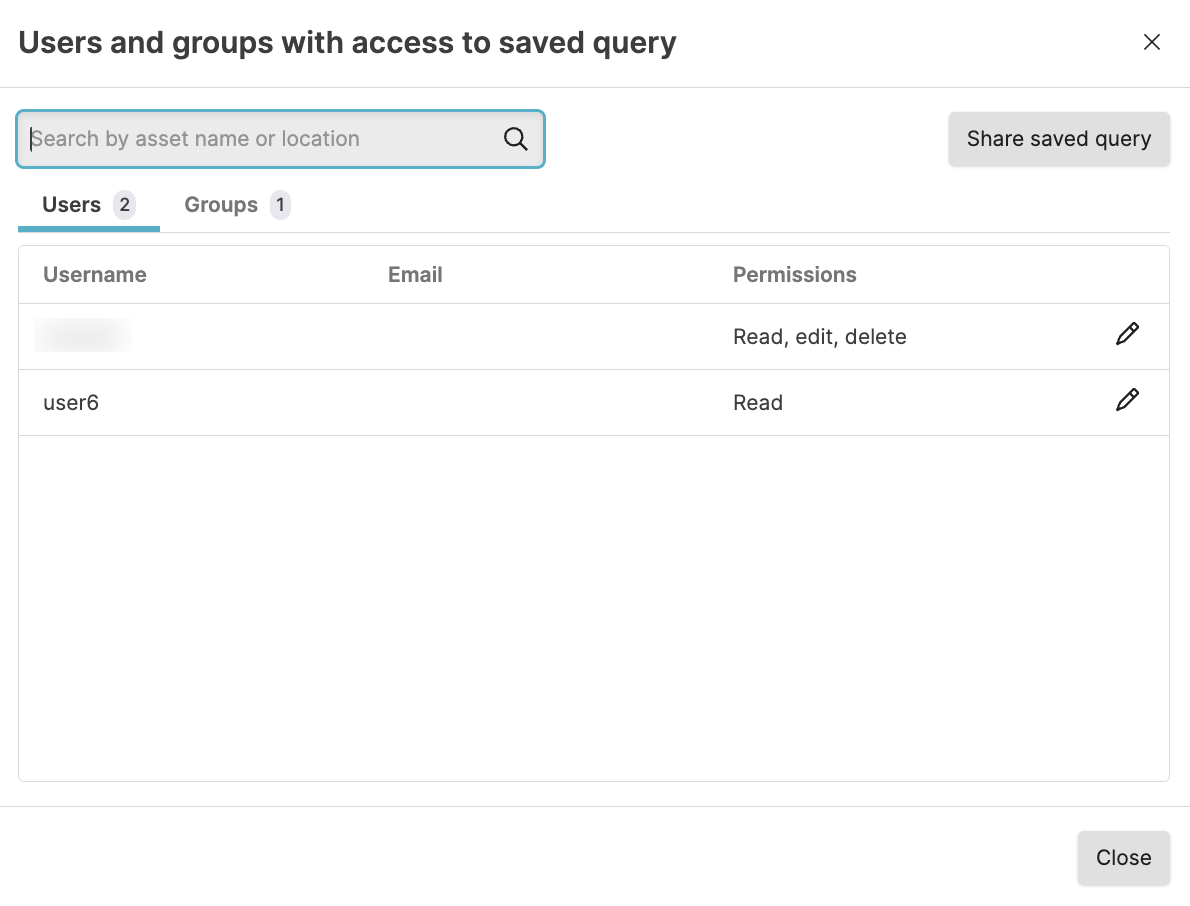
Click next to the saved query you want to share and click .
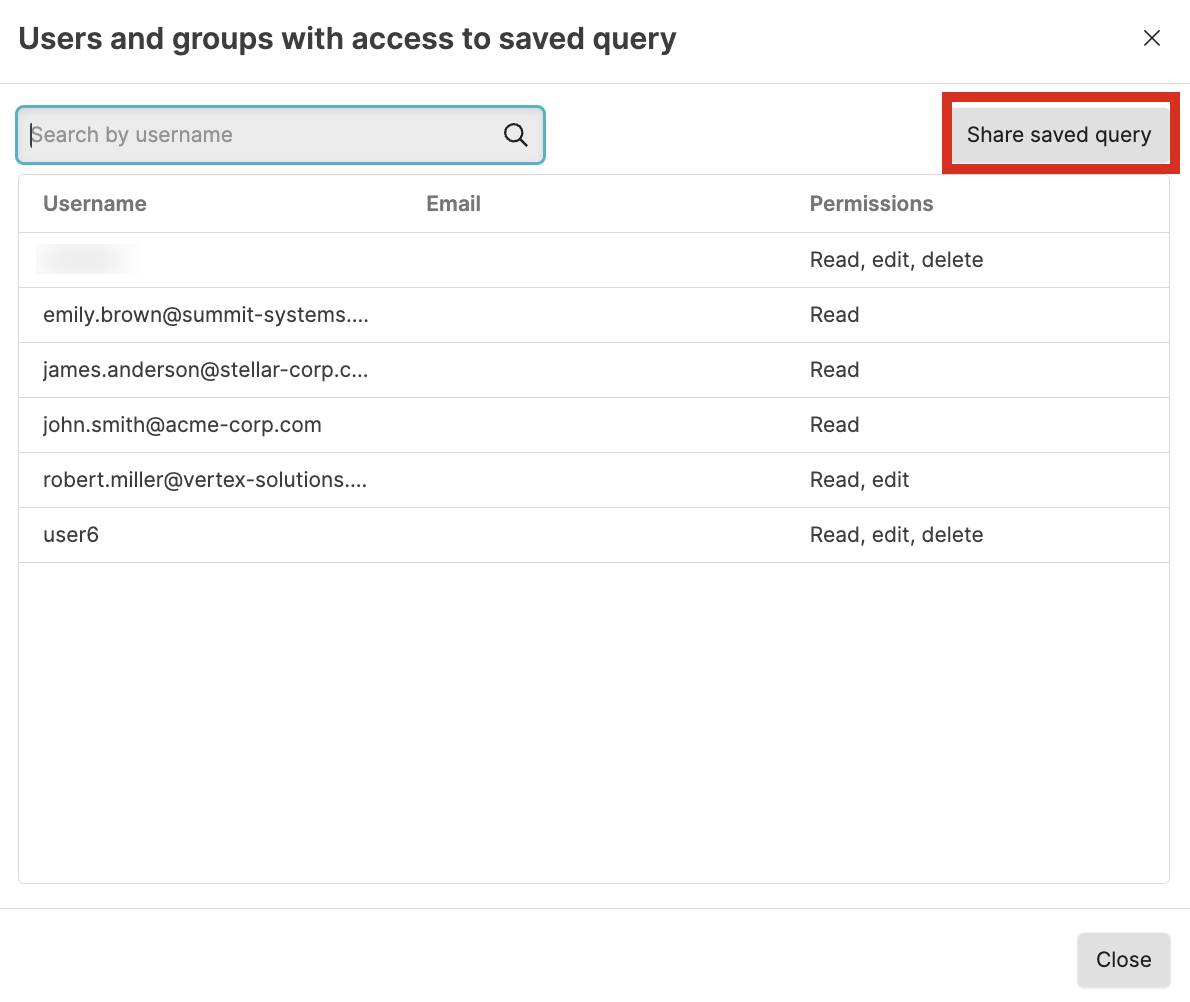
In the Users and groups with access window you see users who currently have access to the dashboard and what access they have.
Click .
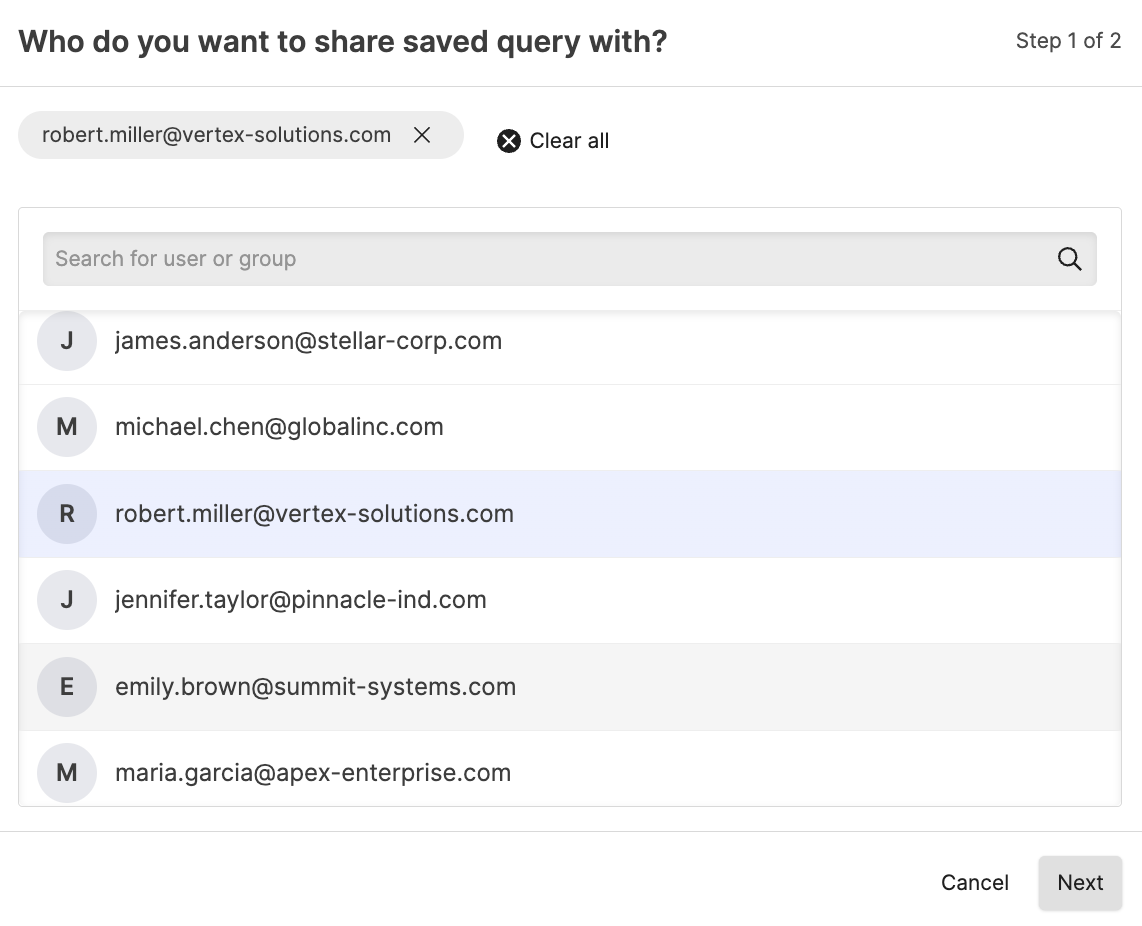
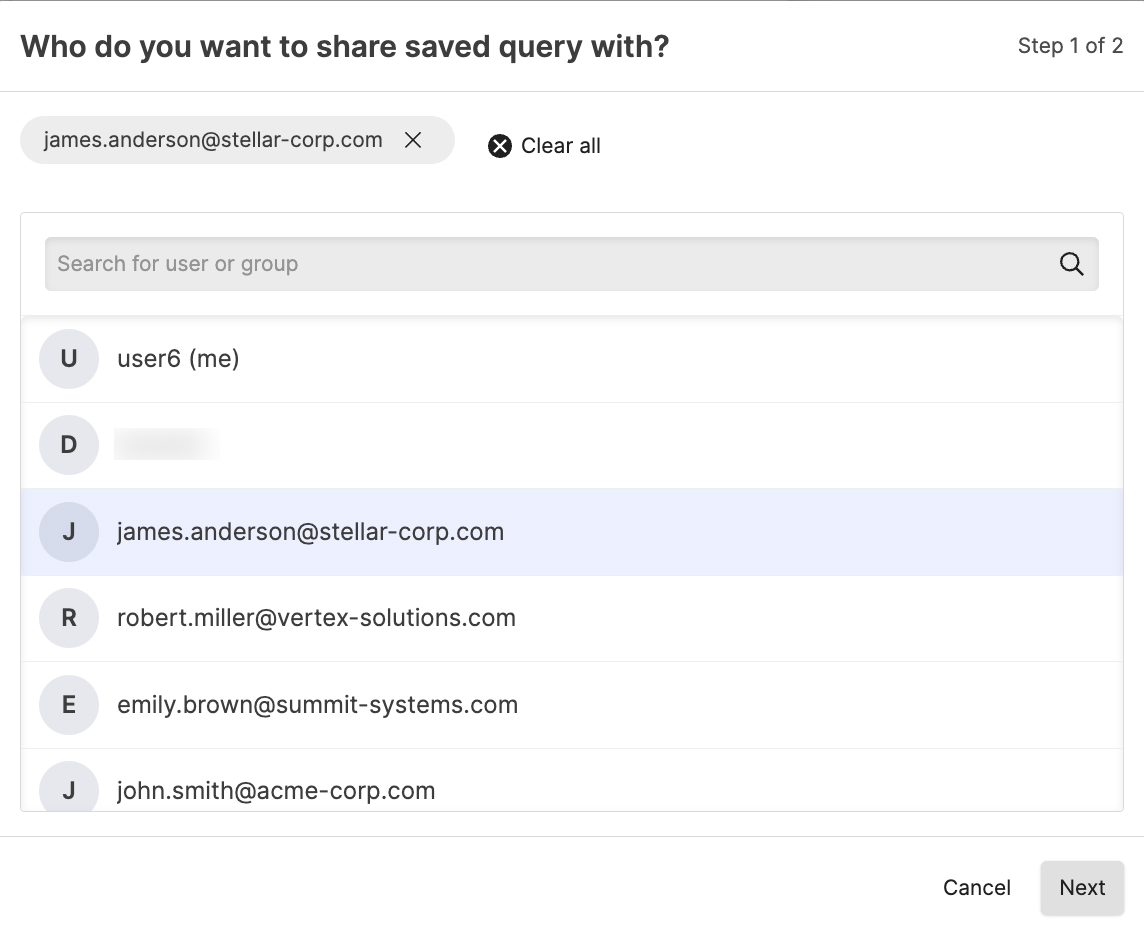
Click to select the user to get additional permissions. Note that you can only see users who already have read permission to the view. Click .
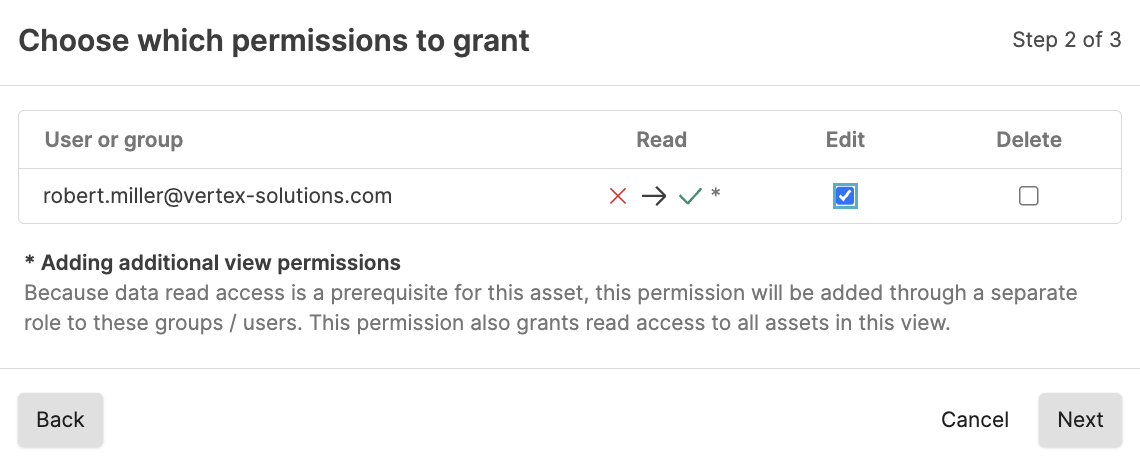
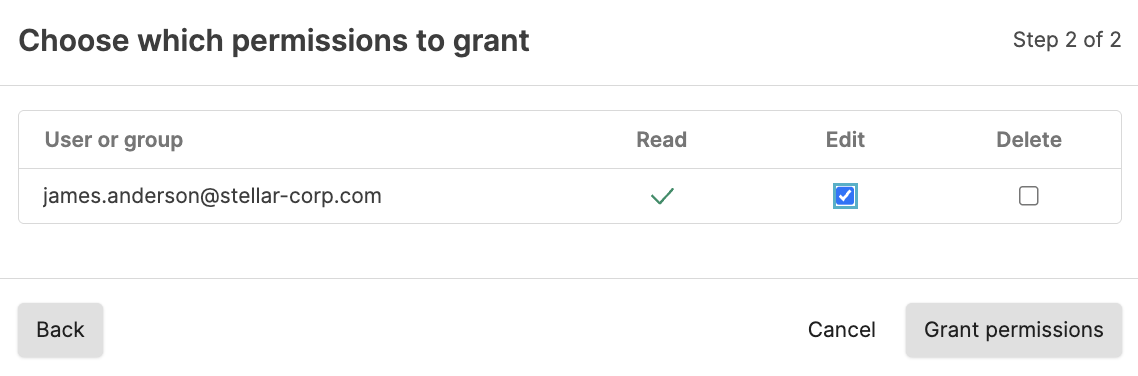
Select the appropriate permissions to assign. Click .
With
Change user accesspermission, you can grant permission to users, including read permission if the user does not have that, and permissions that you do not have yourself. You can also see groups and group members and what permissions they have in the Groups tab, but you cannot change the permissions for the group in the Groups tab. To be able to change the permissions directly from the group tab, you must haveChange organization permissionspermission.To grant additional permissions to a user that already has read access to the view:
If you have the
Change user accesspermission and you want to share permissions to the action with a user or group not in the list, or you want to give a group that is in the list additional permissions:
Click .
Click to select the group or user who should get additional permissions. Click .
Select the appropriate permissions to assign. Be aware of the message that the user or group gets Read access to all assets in the repository automatically when assigning asset permissions for one asset in the repository. Click .
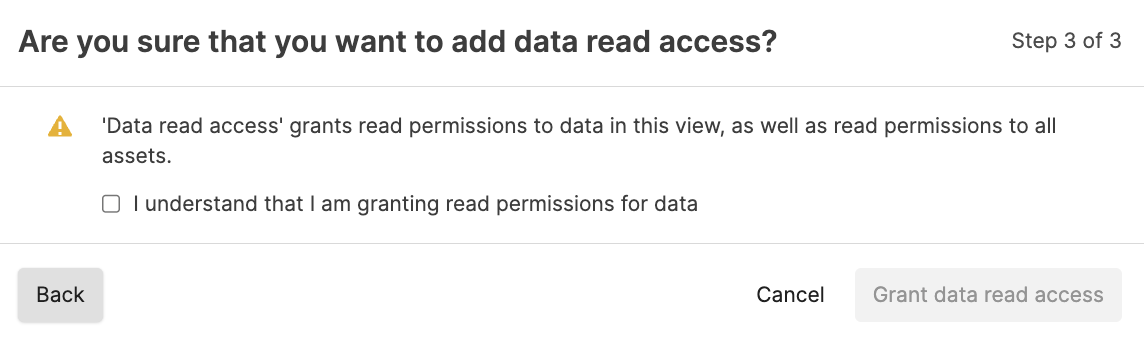
Confirm that you understand that you are granting Read access to all assets in the repository by adding the asset permission for the user or group. Click .
Click .