

Export Dashboards as PDF
LogScale allows exporting dashboards as PDF files for archiving, printing, or distribution purposes, with support for both list and grid layout options. You can generate PDF snapshots that capture the current dashboard state, including time ranges and parameters, and can even automate the distribution of these reports through scheduled email functionality.
Dashboards can be exported as a PDF file, so you can archive, print or distribute it. The PDF will contain the snapshot of the dashboard, including current time range and parameters selection.
You can automate sending dashboard PDF snapshots by email using the Schedule PDF Reports functionality.
PDF Export Operation
Understanding how PDF export works can help you design dashboards that export reliably.
Widget Execution. Widgets are rendered in parallel during PDF export, not sequentially. This means multiple widgets can load simultaneously, which improves export performance.
Caching Behavior. PDF export uses cached results when available, following standard cache validation rules. If a widget's query results are already cached, the export uses those results instead of running the query again.
Timeouts. PDF export does not have a specific documented timeout limit. Dashboards that take hours to load interactively will not work well for PDF export. If your dashboard takes a long time to load in the web interface, it will likely encounter issues when exporting to PDF.
Performance Recommendations. For reliable PDF exports, design dashboards that load quickly. If a dashboard takes hours to load interactively, consider optimizing the queries or reducing the number of widgets before attempting PDF export.
PDF Export Layouts
There are two layouts supported for exporting PDFs: list and grid.
Choose the List option to create a page with one widget per row, suitable for tables and event lists. This choice ensures that additional rows, even those hidden by pagination, can be printed. Adjust the Widget settings: Maximum number of rows to control the number of rows included (the limit is 1,000).
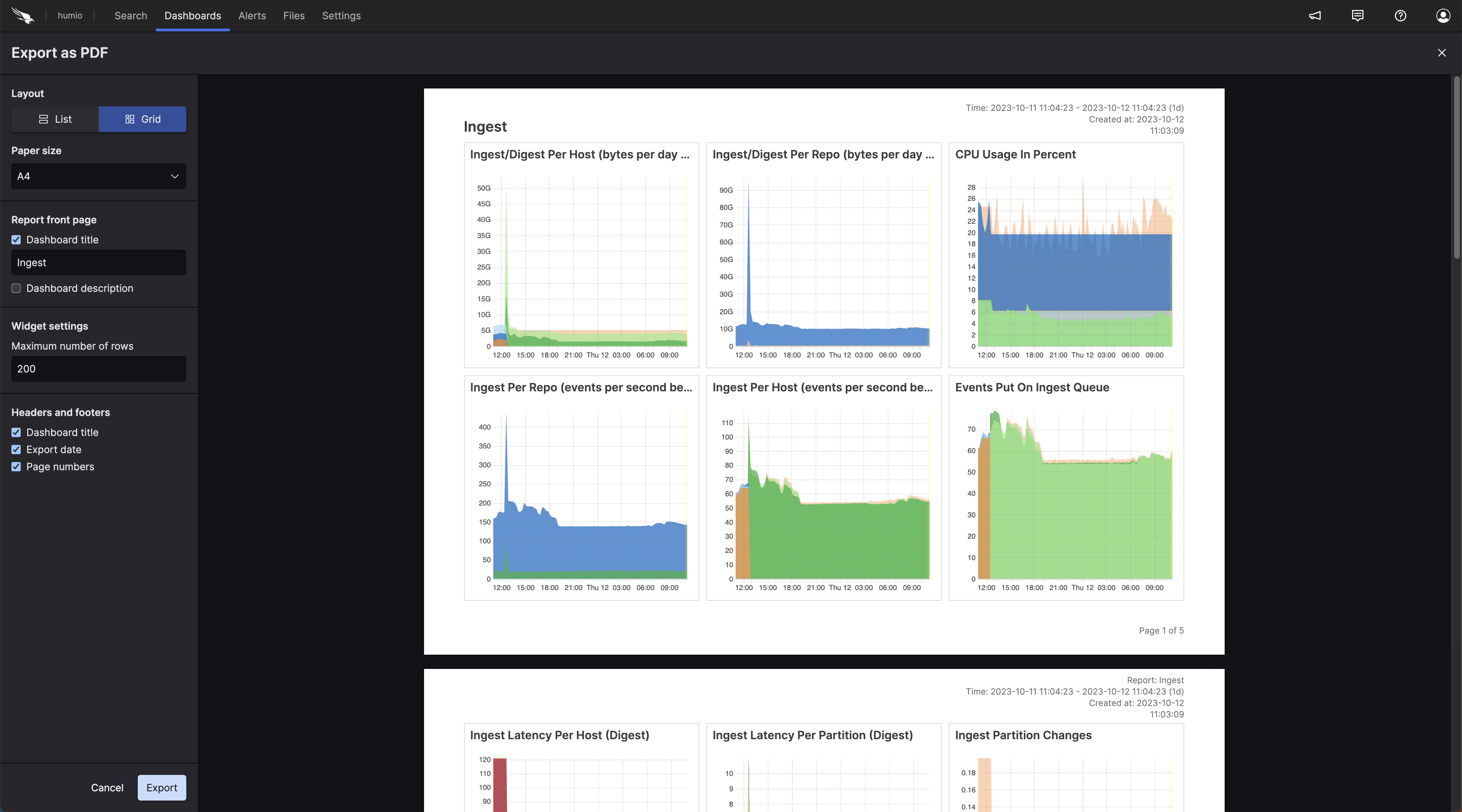
Opt for the Grid option to create a landscape page mirroring the dashboard's widget layout. This option is recommended for dashboards with multiple charts, it's perfect for conveying a wealth of information on a single page.
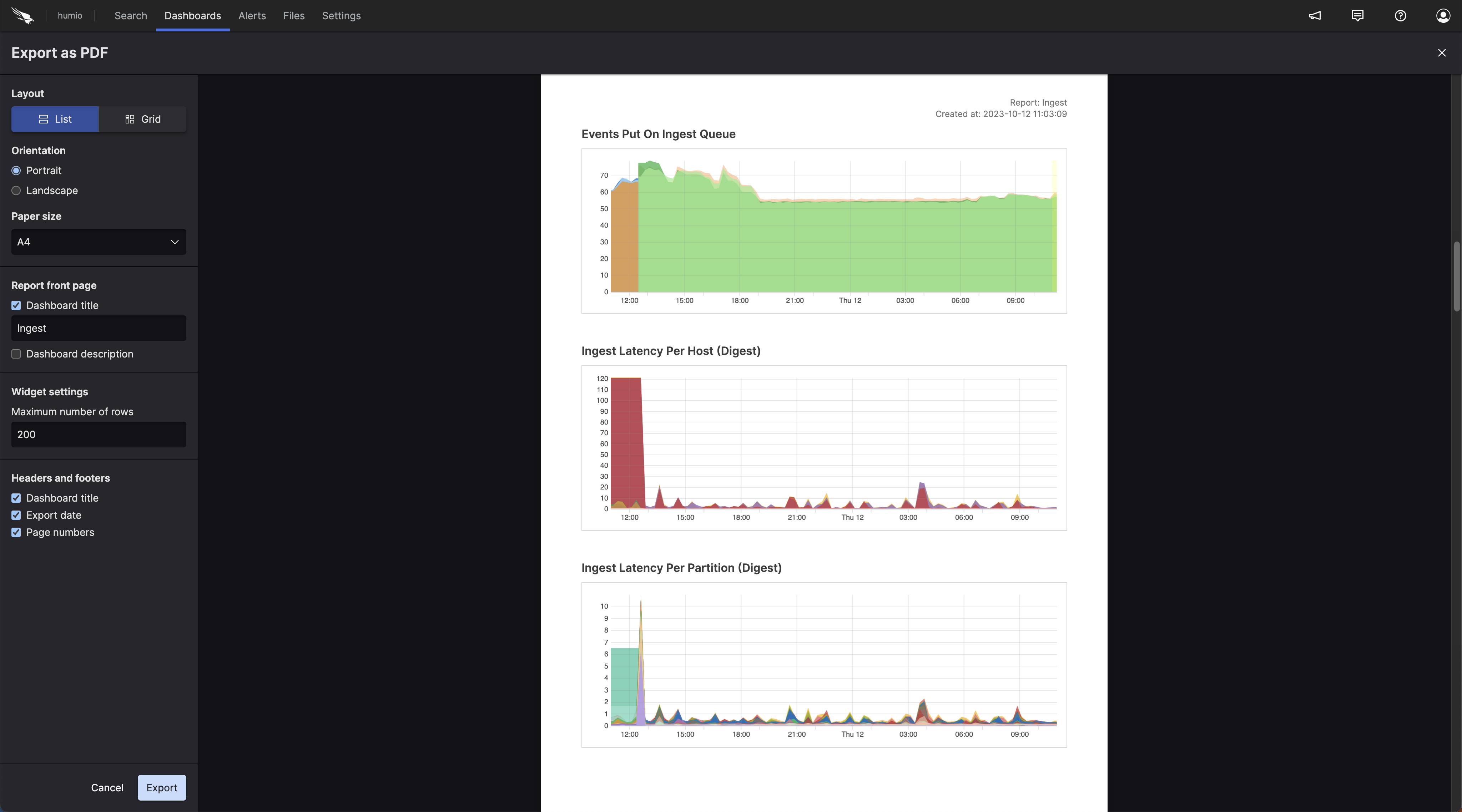 |
Example export using "Grid" layout:
 |
Export Dashboard to PDF
To export the dashboard as a PDF:
Navigate to the dashboard that you want to export.
Click on the ⋮ icon at the top right of dashboard and choose .
Afterward, a PDF report preview will appear. You can customize it further with PDF Export Options.
Once the report is generated, the Export button will activate. Clicking will activate the browser
Printdialog where you can either print the report directly, or save the report as a PDF file.
Note
Before exporting, ensure that the margins in the
Print or
Page Setup dialog are set to
Default .