

Schedule PDF Reports
The Scheduled PDF Reports feature allows for generation of formatted dashboard reports and automatic email sending to specified recipients based on customizable time intervals, from hourly to specific days.
These reports have the same formatting flexibility as Export Dashboards as PDF. The reports can be set to trigger at any frequency — based on time, interval or specific days — starting from once per hour. For example, you could set a daily report to be sent for a period of two weeks.
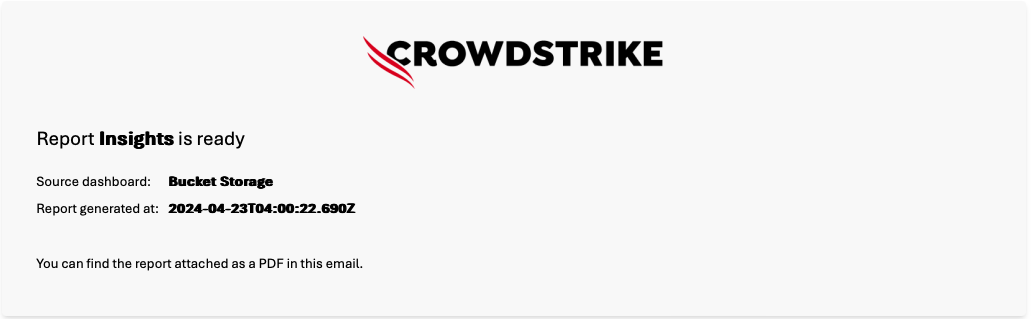
Recipients will receive an email with LogScale Scheduled PDF
– report name as the subject line, the email will have a PDF
file report with dashboard in attachment:
 |
LogScale Self-Hosted.
Using scheduled reports in LogScale self-hosted environments requires use
of an external auxiliary node to create the PDF reports. For more
information on deploying an auxiliary PDF service, see
PDF Render Service. Additionally, the feature requires
the configuration variable
ENABLE_SCHEDULED_REPORT, see
Adding PDF Render to LogScale Configuration.
Scheduled Reports in Packages
Scheduled PDF reports can be included in Package Management, allowing you to export and import report configurations in YAML format alongside related dashboards and other assets.
When you export a package that includes scheduled reports, the reports are saved in YAML format. This allows you to:
Store report configurations in source control alongside other package assets
Distribute reports as part of integration packages to other repositories or organizations
Version and track changes to report configurations over time
Dashboard Reference Rewriting
When a scheduled report references a dashboard from another package and both are exported together into a new package, LogScale automatically rewrites the dashboard reference to point to the new package location.
For example, if you export a scheduled report that references
old/package:my-dashboard and
include that dashboard in the export, the reference is automatically
updated to
new/package:my-dashboard when the
package is created.
This ensures that scheduled reports continue to work correctly after being imported into different package contexts, without requiring manual configuration changes.
Exporting Scheduled Reports in Packages
To include scheduled reports when exporting a package:
Follow the standard Exporting the Package process
In the asset selection step, select the scheduled reports you want to include in the package
Complete the export process as usual
The exported package will include YAML files for each scheduled report
in the scheduled-reports/
directory. For more information on package file formats, see
Package File Formats.
You can also export scheduled reports using the
Exporting a Package endpoint by including scheduled
report IDs in the
scheduledReportIds field.
Importing Scheduled Reports from Packages
When you install a package that includes scheduled reports, the reports are created in the target repository or view.
For more information on installing packages, see Package Management.