

Manage Lookup Files
You can manage all available lookup files in your repository from the web interface.
From the table you can:
Update lookup files
Security Requirements and Controls
Update Filespermission
Sometimes it's necessary to update the content of lookup files. If you are running a trigger with a lookup file action, you can configure the action to update the file automatically based on the results of the trigger.
If you are not updating the lookup file automatically with a trigger as described above, the following methods are available to update lookup files:
Update the lookup file from the menu → :
Click on the file to update
Update the file as needed: add or remove columns and rows, update contents, and so on.
Click
Update the lookup file externally and upload it to LogScale. To do this, export the lookup file and open it in another tool, make the necessary changes, and upload the file again.
Export lookup files
Security Requirements and Controls
Update Filespermission
You can export lookup files from LogScale, for example to augment content in third-party tools where it is easier to manipulate large amounts of data.
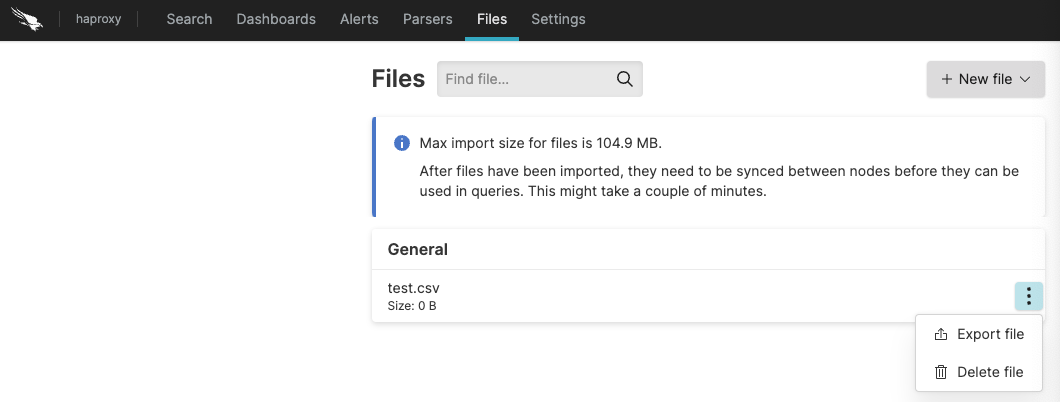 |
Figure 42. Exporting individual lookup files
You can also export the lookup file when the file is open by clicking :
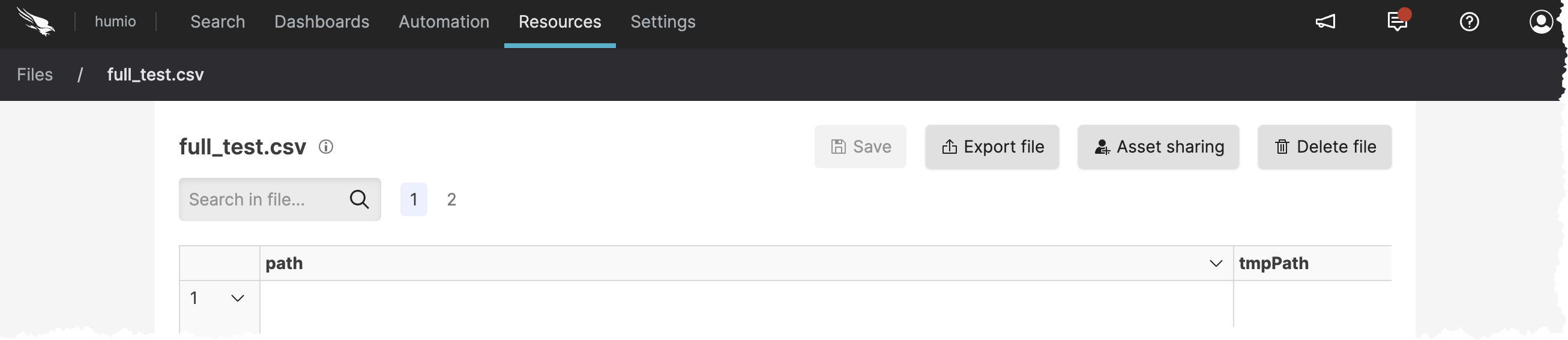 |
Figure 43. Export file
Delete a lookup file
Security Requirements and Controls
Delete Filespermission
Warning
Deleting a file that is actively used by live queries will stop those queries.
To delete a file click the ⋮ menu icon next to a file in the files' overview table.
You can also delete the lookup file when the file is open by clicking .
|
Figure 44. Delete file