

Display Results and Events
LogScale presents the data returned from a search in a list format. By default, this list includes the @timestamp and @rawstring columns, plus any columns selected in the Fields panel.
Display tabs
Depending on the contents and functions used in the query, different tabs for displaying output data appear based on the query, for example if the query includes Aggregate Query Functions. Available tabs are:
Results tab
Presents the final results from the query once all of the elements of the source query including filters and aggregations (for example using
groupBy()) have been completed.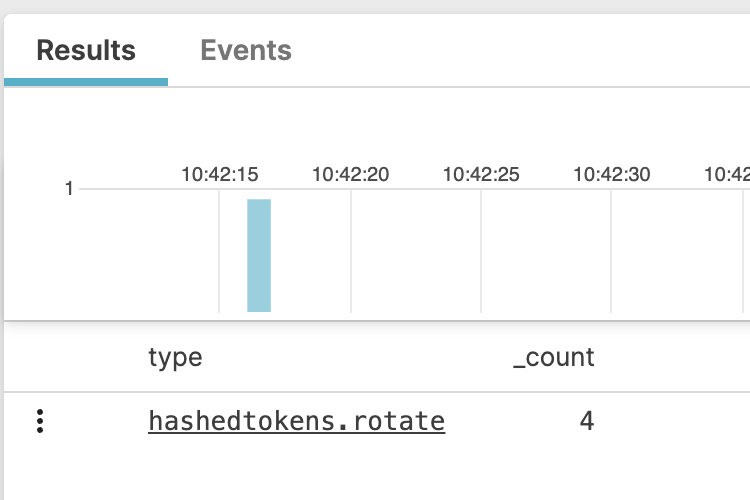
Events tab
It is the event list that displays the results of a query. For queries without a prefix, this tab includes the raw event data after matches and filtering, but before aggregation.
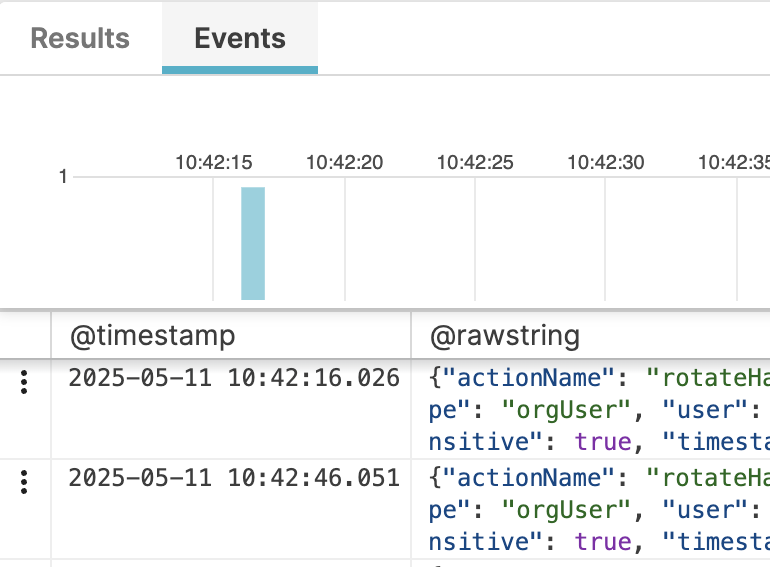
Table tab
Appears when the
defineTable()function is used in the source query, to display the results of the ad-hoc table defined by the function.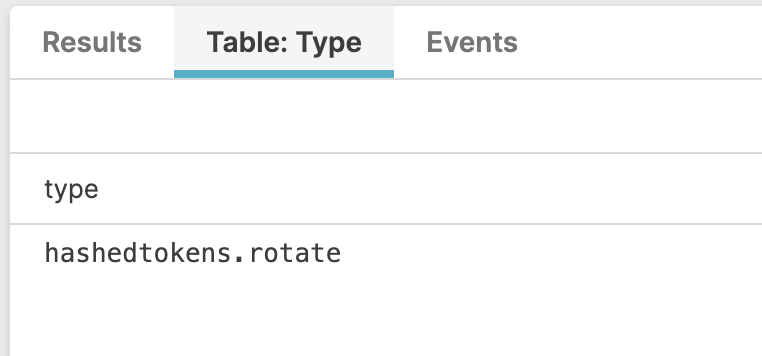
The display of matching entries for the table is limited to the first 500 rows. For more information, see How to Use Ad-hoc Tables in Queries.
Content in the Table tab is populated by accessing the table generated by the original query. This approach displays the information much quicker than executing an additional subquery on the table.
Display options
You can change the way events are displayed from the Tool panel above the Event List:
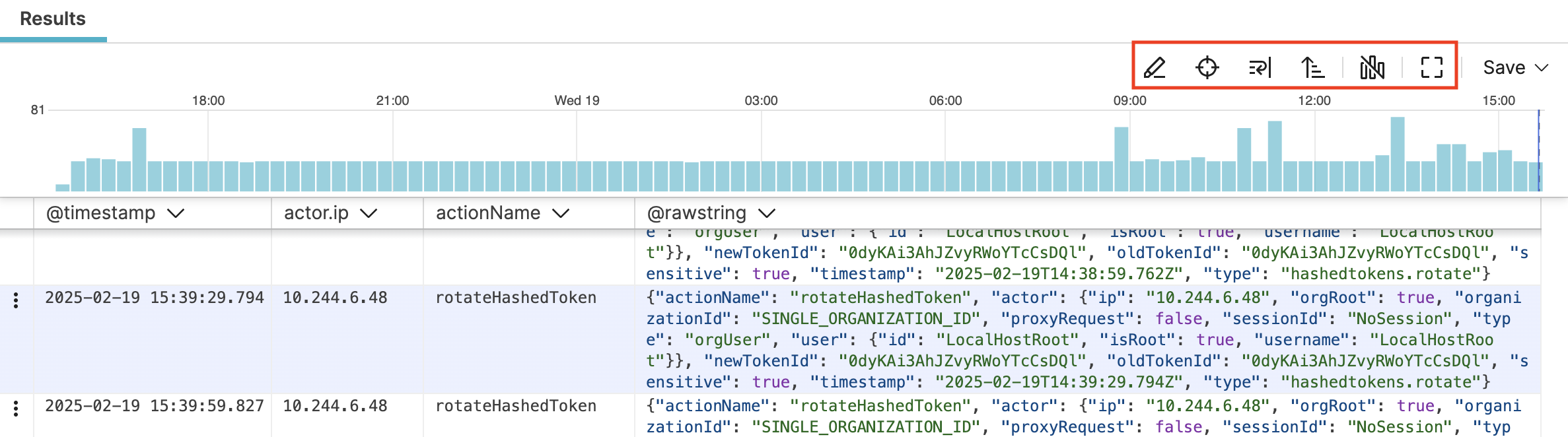 |
Figure 69. Results Tab and Display Modes
The Tool Panel allows for these options:
The style icon opens the Format panel, see Manage Fields for more information.
Manage interactions provides access to Event List Interactions.
Filter match highlighting allows highlighting results based on the filters applied in queries. See Highlight Filter Match for more information.
scrolls to selected event to make it possible to scroll fields starting from a selected event.
Text wrapping is used to wrap lines or truncate fields after the first line.
changes the order of fields in the event. You can choose whether newest events appear at the bottom or top of the list.
allows hiding the event histogram to get more space when looking at data. The histogram provides a graphical representation of how many events occurred at different points in time. Hover over the bars to check events per bucket span; click on a bucket span to update the Event List and show only the events that occurred during that specific time interval.
toggles/untoggles fullscreen to display events in full-screen mode.