

Action Type: GCS
Available: Action type:GCS v1.259
Action type:GCS is available from version 1.259.
The GCS action uploads query results from LogScale to Google Cloud Storage buckets as files. When configured, this action can be triggered by alerts or scheduled searches to export event data in either CSV or NDJSON format.
The GCS action requires the following prerequisites:
A GCS bucket to store the files in.
Appropriate service account configured. Self-hosted users must configure the service account through the
GCP_ACTION_WORKLOAD_IDENTITYorGCP_ACTION_ACCOUNT_JSON_FILEenvironment variables.Appropriate IAM role configured in your GCP account. LogScale uses service account impersonation to write to customer buckets. For more information, see Customer setup guide.
Server-side configuration
A system administrator configures a LogScale cluster to enable GCS actions in a Self-Hosted environment. After configuration, you can follow the Customer setup guide to create actions that write to their own GCS buckets.
How it works
LogScale uses service account impersonation to write to customer buckets:
LogScale authenticates as its own service account (the base identity).
LogScale impersonates the customer's target service account (configured per-action).
The impersonated credentials write to the customer's bucket.
LogScale reads the bucket metadata and verifies the
logscale-external-idlabel matches the expected value for the organization.
The authentication flow is: LogScale's service account uses Token Creator permissions to impersonate the customer's service account, which has Object Admin and Storage Legacy Bucket Reader permissions on the GCS bucket.
Bucket label verification
Each organization in LogScale has a unique label value derived from a SHA-224 hash of its internal organization ID. This label is shown in the GCS Action form and must be applied to the target bucket by the customer.
When an action is tested or run, LogScale verifies the label before writing. This prevents a misconfigured action from writing to a bucket owned by a different tenant, even if the impersonation chain is valid.
The target service account needs Storage Legacy
Bucket Reader on the bucket to allow LogScale to read the
bucket metadata for this check. Without it, GCS returns a 404 and
LogScale reports the bucket as not found.
Configuration options
Set one of the two authentication environment variables.
GCS_ACTION_MAX_FILE_SIZE_BYTES applies regardless of
which authentication method you choose.
Table: GCS action server configuration
| Environment Variable | Value | Description |
|---|---|---|
GCP_ACTION_WORKLOAD_IDENTITY
|
true
| Use Application Default Credentials (Option A). |
GCP_ACTION_ACCOUNT_JSON_FILE
|
/path/to/sa-key.json
| Path to a GCP service account JSON key file (Option B). |
GCS_ACTION_MAX_FILE_SIZE_BYTES
| (optional) | Maximum upload size, default 50 MB, maximum 1 GB. |
There are two ways to provide LogScale with its base GCP identity.
Option A: Application Default Credentials (recommended)
LogScale resolves credentials automatically from the environment using Google's Application Default Credentials (ADC) mechanism, which checks the following sources in order:
GOOGLE_APPLICATION_CREDENTIALSenvironment variable that points to a credential file.User credentials from gcloud auth application-default login.
GCE/GKE metadata server (only on Google Cloud infrastructure).
This option works in multiple deployment scenarios:
Table: ADC credential resolution scenarios
| Environment | How ADC Resolves Credentials |
|---|---|
| GKE with Workload Identity | Metadata server provides credentials for the GCP service account bound to the Kubernetes service account. No files needed. |
| Non-GCP server with service account key file |
Set GOOGLE_APPLICATION_CREDENTIALS to the path
of the key file. ADC reads the key and authenticates as that
service account.
|
| Non-GCP server with Workload Identity Federation |
Set GOOGLE_APPLICATION_CREDENTIALS to the path
of the federation configuration file. ADC exchanges a token
from your local identity provider (AWS IAM, Azure AD, OIDC)
for short-lived GCP credentials. No long-lived keys needed.
|
The IAM Identity shown to customers in the UI is resolved automatically from these credentials at startup.
Option B: Explicit service account key file
LogScale reads the key file directly and uses the
client_email and
private_key fields to authenticate.
The client_email is the IAM Identity
shown to customers in the UI.
This option bypasses ADC and always uses the specified key file. Use this when you prefer explicit configuration over ADC's automatic resolution.
To create a key file:
Alternatively, you can use the CLI:
gcloud iam service-accounts keys create /path/to/sa-key.json \
--iam-account=logscale-base@LOGSCALE_PROJECT.iam.gserviceaccount.comVerify the configuration
After setting the environment variables and restarting LogScale:
Notes
The base service account needs no bucket permissions itself. It only needs to be granted
roles/iam.serviceAccountTokenCreatoron each customer's target service account.Impersonated credentials are short-lived (300 seconds) and automatically refreshed.
If both
GCP_ACTION_WORKLOAD_IDENTITYis set totrueandGCP_ACTION_ACCOUNT_JSON_FILEis set, Workload Identity takes precedence for authentication. The key file is only used for signing operations (for example, signed URLs).
Customer setup guide
Create the GCP resources needed for LogScale's GCS action to write files to your bucket through service account impersonation.
Before you begin
A GCP project where you'll create the bucket and service account.
The LogScale IAM Identity (service account email), shown in the GCS Action form in LogScale.
Step 1: Create a target service account
Go to IAM & Admin → Service Accounts.
Click .
Name it (for example,
logscale-gcs-writer), give it a description.Skip the optional grant steps, click .
Step 2: Grant LogScale permission to impersonate the target service account
Still in IAM & Admin → Service Accounts, select the service account you just created.
Go to the Principals with access tab.
Click .
In New principals, paste the LogScale IAM Identity email (copied from the LogScale GCS Action form).
Assign role: Service Account Token Creator.
Click .
Step 3: Create a GCS bucket
Go to Cloud Storage → Buckets.
Select .
Name it (for example,
my-logscale-exports), pick a location, leave defaults.Select .
Step 4: Grant the target service account write access to the bucket
Still on your bucket, go to the Permissions tab.
Select .
In New principals, paste the target service account email:
logscale-gcs-writer@.MY_PROJECT.iam.gserviceaccount.comAssign the following roles:
Storage Object Admin (or Storage Object Creator for write-only access). Storage Object Creator allows creating new objects but not overwriting existing ones. Use Storage Object Admin if you need to overwrite objects with the same name.
Storage Legacy Bucket Reader (required to read bucket metadata for label verification).
Click .
Step 5: Set the bucket verification label
LogScale requires a verification label on the bucket to confirm ownership. The label value is shown in the GCS Action form under Bucket Verification Label.
Go to Cloud Storage → Buckets, and select your bucket.
Select (or go to the bucket's Configuration tab).
Add a label with key
logscale-external-idand the value copied from the LogScale GCS Action form.Click .
Important
Multiple repositories within the same organization can share a bucket, because the verification label is derived from the organization's identity. Buckets cannot be shared across different organizations.
Note
The label is checked when testing or running the action. If the label is missing or incorrect, the action fails with a descriptive error.
Step 6: Configure the action in LogScale
In LogScale menu, go to the
Actionsinterface and click . For more information on how to create actions, see Create Actions.Enter the following values in the Upload to GCS action form:
Service account email
logscale-gcs-writer@MY_PROJECT.iam.gserviceaccount.comProject ID Your GCP project ID
Bucket
my-logscale-exportsFile name Your preferred path or template
Labels (optional). Adding labels enables you to group actions by the label in the
Actionspage. See Figure 233, “Actions Page”.Output metadata. Check the box to output a separate JSON file containing all relevant metadata for the uploaded events.
Optional: click to verify that the action is working properly before creating it.
Click (or if you're editing an existing configuration). The GCS action is now fully configured and ready to use.
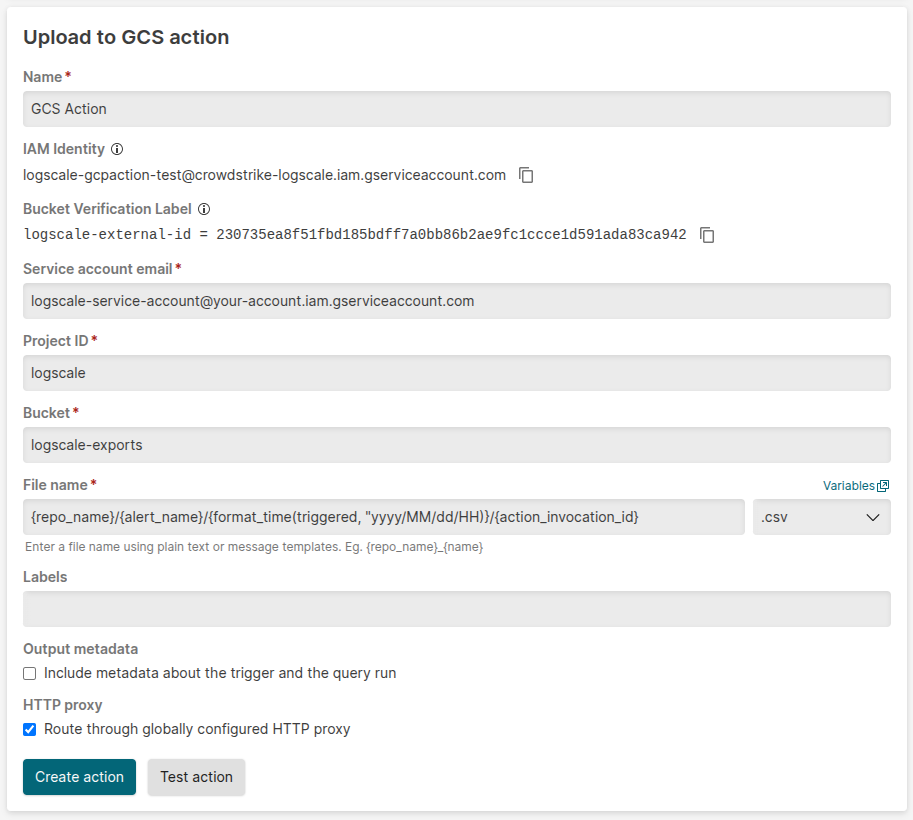 |
Figure 245. GCS Action configuration
Permission summary
Table: GCS action permission summary
| Resource | Principal | Role | Purpose |
|---|---|---|---|
| Target service account | LogScale's service account | Service Account Token Creator | Impersonation |
| GCS Bucket | Target service account | Storage Object Admin | Write files |
| GCS Bucket | Target service account | Storage Legacy Bucket Reader | Read bucket metadata for label verification |
| GCS Bucket | — |
Label: logscale-external-id
| Prove bucket ownership |
CLI alternatives
Run the following commands to complete each step individually:
# Step 1: Create target service account
gcloud iam service-accounts create logscale-gcs-writer \
  --display-name="LogScale GCS Writer" \
  --project=MY_PROJECT

# Step 2: Grant LogScale impersonation
gcloud iam service-accounts add-iam-policy-binding \
  logscale-gcs-writer@MY_PROJECT.iam.gserviceaccount.com \
  --member="serviceAccount:LOGSCALE_SA@LOGSCALE_PROJECT.iam.gserviceaccount.com" \
  --role="roles/iam.serviceAccountTokenCreator"

# Step 3: Create bucket
gcloud storage buckets create gs://my-logscale-exports \
  --project=MY_PROJECT --location=US

# Step 4: Grant target service account bucket write access
gcloud storage buckets add-iam-policy-binding gs://my-logscale-exports \
  --member="serviceAccount:logscale-gcs-writer@MY_PROJECT.iam.gserviceaccount.com" \
  --role="roles/storage.objectAdmin"
gcloud storage buckets add-iam-policy-binding gs://my-logscale-exports \
  --member="serviceAccount:logscale-gcs-writer@MY_PROJECT.iam.gserviceaccount.com" \
  --role="roles/storage.legacyBucketReader"

# Step 5: Set bucket verification label (copy value from LogScale action form)
gcloud storage buckets update gs://my-logscale-exports \
  --update-labels=logscale-external-id=YOUR_LABEL_VALUE
Automated setup script
The setup script creates all required GCP resources and outputs the values to enter in the LogScale action form.
Run the script
./setup-gcs-action.sh <project-id> <logscale-sa-email> <external-id> [bucket-name] [target-sa-name] [location]For example, run the following command:
./setup-gcs-action.sh my-project logscale-base@logscale-prod.iam.gserviceaccount.com a1b2c3d4e5f6...Before you begin
gcloud CLI installed and authenticated.
Sufficient IAM permissions in the target project (create service account, create bucket, set IAM).
Script content
#!/usr/bin/env bash
set -euo pipefail

# Setup script for LogScale GCS Action.
# Creates the GCP resources needed and outputs the values to enter in LogScale.
#
# Prerequisites:
#   - gcloud CLI installed and authenticated
#   - Sufficient IAM permissions in the target project (create SA, create bucket, set IAM)

# --- Configuration ---

PROJECT_ID="${1:?Usage: $0 <project-id> <logscale-sa-email> <external-id> [bucket-name] [target-sa-name] [location]}"
LOGSCALE_SA_EMAIL="${2:?Usage: $0 <project-id> <logscale-sa-email> <external-id> [bucket-name] [target-sa-name] [location]}"
EXTERNAL_ID="${3:?Usage: $0 <project-id> <logscale-sa-email> <external-id> [bucket-name] [target-sa-name] [location]}"
BUCKET_NAME="${4:-${PROJECT_ID}-logscale-exports}"
TARGET_SA_NAME="${5:-logscale-gcs-writer}"
LOCATION="${6:-US}"

TARGET_SA_EMAIL="${TARGET_SA_NAME}@${PROJECT_ID}.iam.gserviceaccount.com"

echo "=== LogScale GCS Action Setup ==="
echo ""
echo "Project:          ${PROJECT_ID}"
echo "LogScale SA:      ${LOGSCALE_SA_EMAIL}"
echo "External ID:      ${EXTERNAL_ID}"
echo "Target SA:        ${TARGET_SA_EMAIL}"
echo "Bucket:           ${BUCKET_NAME}"
echo "Location:         ${LOCATION}"
echo ""

# --- Step 1: Create the target service account ---

echo "--- Step 1: Creating target service account..."
if gcloud iam service-accounts describe "${TARGET_SA_EMAIL}" --project="${PROJECT_ID}" &>/dev/null; then
  echo "    Service account already exists, skipping."
else
  gcloud iam service-accounts create "${TARGET_SA_NAME}" \
    --display-name="LogScale GCS Writer" \
    --project="${PROJECT_ID}"
  echo "    Created ${TARGET_SA_EMAIL}"
fi

# --- Step 2: Grant LogScale permission to impersonate the target SA ---

echo "--- Step 2: Granting Token Creator to LogScale SA..."
gcloud iam service-accounts add-iam-policy-binding "${TARGET_SA_EMAIL}" \
  --member="serviceAccount:${LOGSCALE_SA_EMAIL}" \
  --role="roles/iam.serviceAccountTokenCreator" \
  --project="${PROJECT_ID}" \
  --condition=None \
  --quiet
echo "    Granted roles/iam.serviceAccountTokenCreator"

# --- Step 3: Create the GCS bucket ---

echo "--- Step 3: Creating GCS bucket..."
if gcloud storage buckets describe "gs://${BUCKET_NAME}" &>/dev/null; then
  echo "    Bucket already exists, skipping."
else
  gcloud storage buckets create "gs://${BUCKET_NAME}" \
    --project="${PROJECT_ID}" \
    --location="${LOCATION}"
  echo "    Created gs://${BUCKET_NAME}"
fi

# --- Step 4: Grant the target SA write access to the bucket ---

echo "--- Step 4: Granting Object Admin and Bucket Reader to target SA on bucket..."
gcloud storage buckets add-iam-policy-binding "gs://${BUCKET_NAME}" \
  --member="serviceAccount:${TARGET_SA_EMAIL}" \
  --role="roles/storage.objectAdmin" \
  --quiet
echo "    Granted roles/storage.objectAdmin"
gcloud storage buckets add-iam-policy-binding "gs://${BUCKET_NAME}" \
  --member="serviceAccount:${TARGET_SA_EMAIL}" \
  --role="roles/storage.legacyBucketReader" \
  --quiet
echo "    Granted roles/storage.legacyBucketReader"

# --- Step 5: Set bucket verification label ---

echo "--- Step 5: Setting bucket verification label..."
gcloud storage buckets update "gs://${BUCKET_NAME}" \
  --update-labels=logscale-external-id="${EXTERNAL_ID}"
echo "    Set label logscale-external-id=${EXTERNAL_ID}"

# --- Done ---

echo ""
echo "=== Setup complete ==="
echo ""
echo "Enter the following values in the LogScale GCS Action form:"
echo ""
echo "  Service Account Email:  ${TARGET_SA_EMAIL}"
echo "  Project ID:             ${PROJECT_ID}"
echo "  Bucket Name:            ${BUCKET_NAME}"
echo ""
Size limitations
The GCS_ACTION_MAX_FILE_SIZE_BYTES environment variable
limits the upload file size. The default limit is 50 MB. The maximum is 1
GB.
When events exceed the configured limit, LogScale truncates the
file. It appends .truncated to the
filename. For example:
myfile.ndjson→myfile.truncated.ndjsonmyfile.csv→myfile.truncated.csv