

Filter Match Highlighting
Filter Match Highlighting in LogScale visually emphasizes search results
that match applied filters in the Event
List widget by using different colors to highlight
matching text and log lines. The feature can be enabled through Account
Settings and works with free-text searches and regular expressions, though
it has some limitations with structured data formats like JSON and XML,
and may not show all overlapping matches when multiple filters are
applied.
From the Search page it is possible to
highlight results that match the filters applied in the query.
Click the Filter match highlighting icon on top of the results to enable the feature:
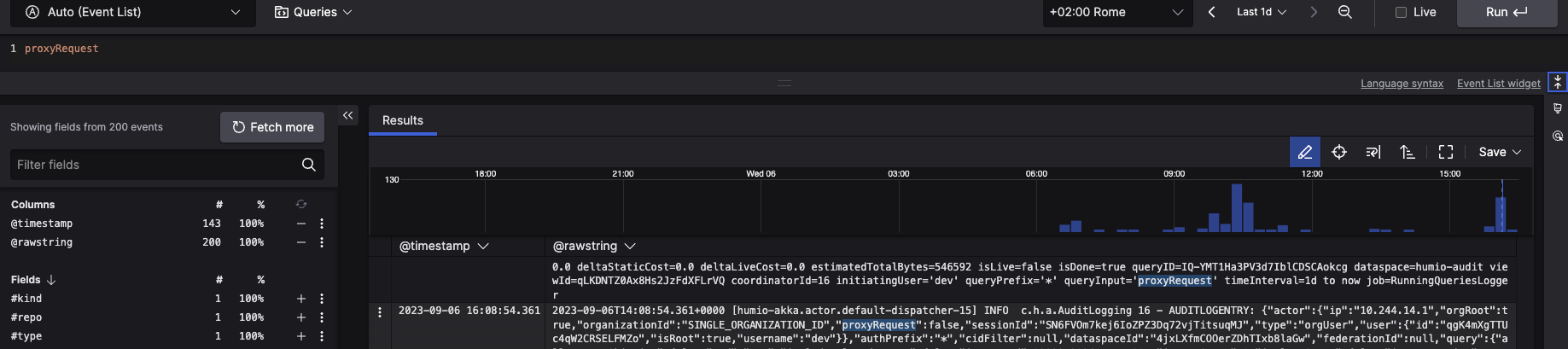 |
Figure 107. Filter Highlight
Displaying with different filter colors
Filter match highlighting with different colors is supported in the
Event List for the
field data types;
Text and
Log Line, and results are
highlighted in the Inspection Panel as
well.
Enabling the filter match highlighting feature
To enable the Filter match highlighting option, go to your → → Account settings and select the checkbox:
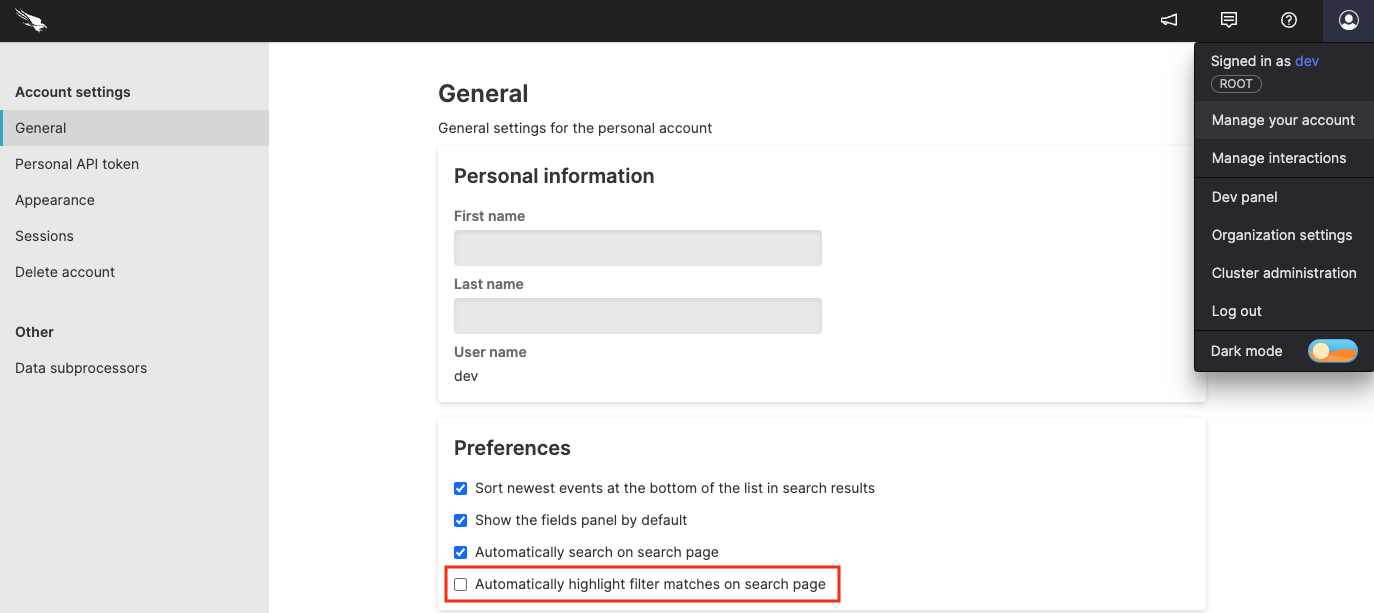 |
Figure 108. Enabling Filter Highlight from Settings
When using this feature, the following conditions apply:
Highlighting is currently available for the
Event
          List
widget type, supporting both free-text searches and regular expressions.Filter match highlighting does not work when highlighting JSON, XML and other structured column formats where syntax highlighting is already applied.
The matching is done on a best-effort basis and performed after the search pipeline is executed. This means that highlighting may not be completely correct, especially in complex queries — when branching using case-statements for example.
If several filters match the same text in a field and the matches overlap, parts or all of some matches from different filters may not be shown.