

Action Type: Upload File
Security Requirements and Controls
Create ActionspermissionCreate FilespermissionUpdate Filespermission
The Upload File action creates a CSV
lookup file from the events and uploads the file to LogScale in the
repository/view of the action. The CSV lookup file can then be used in the
match() function, among others.
It is recommended to use this action with a search that only returns the
fields that are needed as columns in the CSV file. This can, for instance,
be achieved by using the select() query function.
For more information about lookup files in LogScale, see Lookup Files.
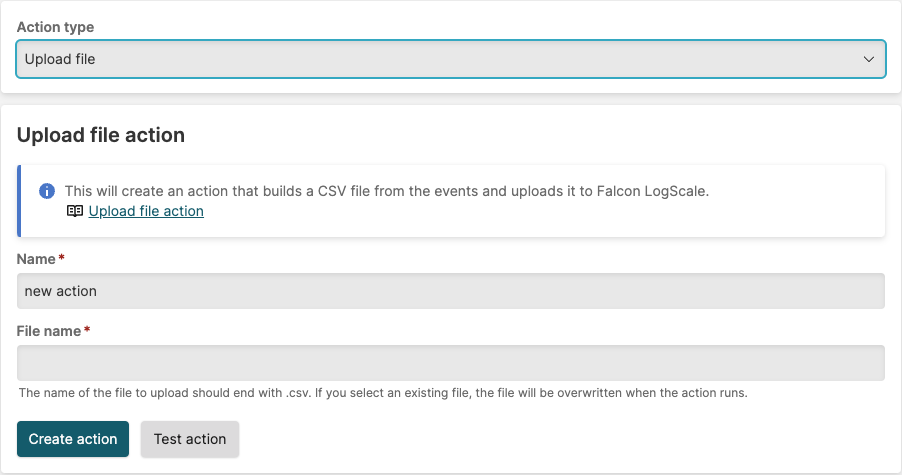 |
Figure 185. Configuring Upload File Action
| Parameter | Description |
|---|---|
| Action Name | The name provided for the action. |
| File Name | When creating a new lookup file, the file name for the CSV file. Type the name of the new lookup file to create. The file name must include the .csv extension. |
Go to and select to find the lookup file.
Whenever the action triggers, the file is overwritten. This means that the action must receive all events necessary to populate the file, and not just the changes since the action was last triggered.
Removing obsolete rows
When using Append results or Update changed, rows that become obsolete are never automatically removed from the lookup file. To remove obsolete rows, set up a separate scheduled search that periodically replaces the file with a full, current snapshot:
Create a new scheduled search configured to run infrequently, for example once a day or once a week.
Configure the query to run over the full search interval so it returns all current data.
Create a new Lookup File action configured with Overwrite contents, pointing to the same lookup file.
Add the new action to the scheduled search.
Each time the scheduled search runs, it replaces the entire file with a complete snapshot of the data, removing any rows that are no longer in the results.