

Create Actions
Security Requirements and Controls
Create Actionspermission
This content covers how to create automated actions in LogScale through the Actions page, including step-by-step instructions for creating actions from scratch, from templates, or from existing packages. The 'Create actions' permission allows you to configure different action types with specific properties, utilizing message templates and variables for sending automated messages.
The Actions page provides an overview of the
automated actions previously created and allows for creating new actions.
To create a new action:
From the tab, select a repository or view for which you want to configure an action.
In the left-hand panel, select Actions, the
Actionsoverview page is displayed: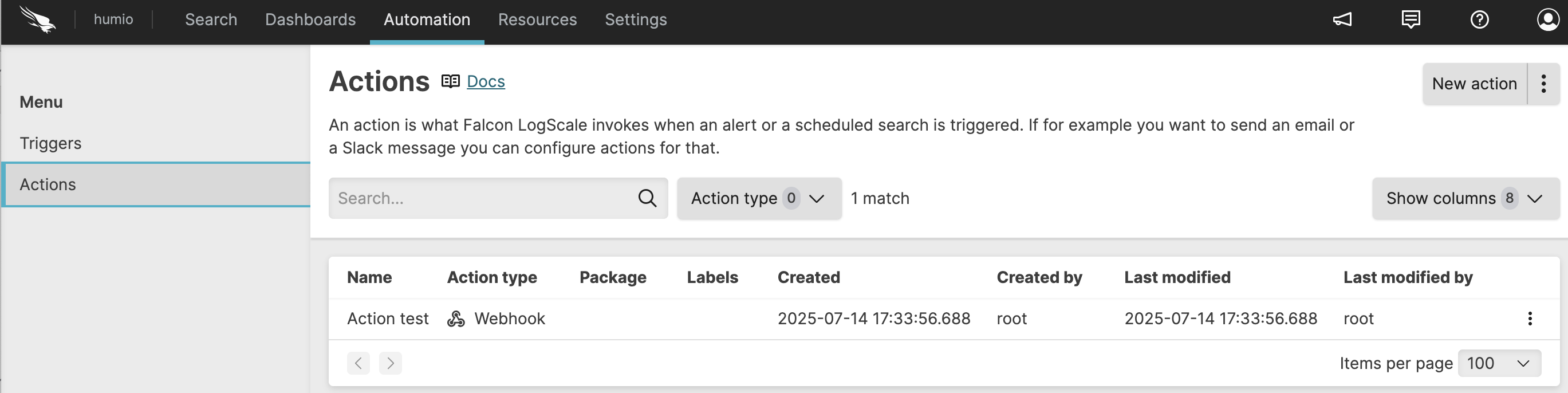
Figure 157. Actions Page
For information on the available actions metadata in this page such as action type or labels, see Manage Actions.
Click to create a new empty action from scratch → give your new action a name → click .
Alternatively, right-click the ⋮ menu to:
Import from template, this allows you to upload a template that has been previously exported
Import from package, this allows you to upload an existing action template that is part of an installed LogScale package.
In either cases, click to continue.
Whether you have created a new empty action or an imported one, the Action type dialog is displayed:
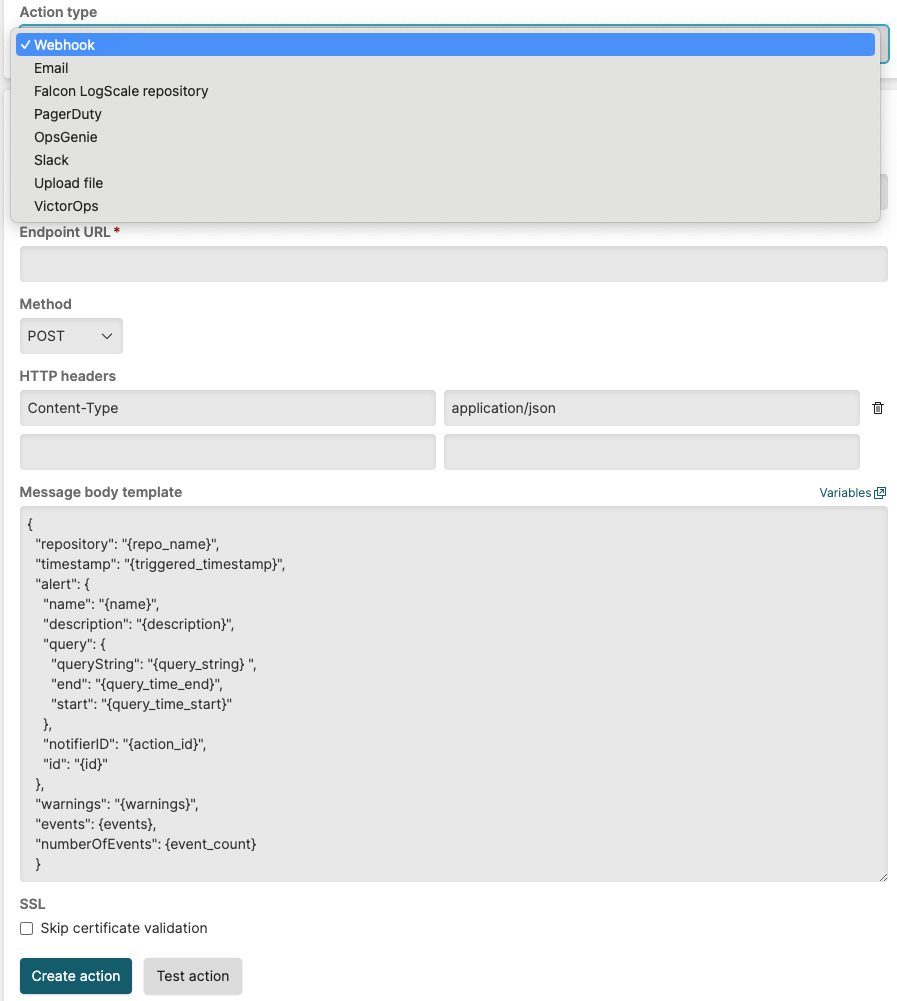
Figure 158. Choose an Action Type
From the drop-down menu, select a type and fill in the required fields (vary depending on the type). For a description of the fields, see the description of each action type.
When you finish setting the properties for the new action, click .
Optional: click to verify that the action is working properly before creating it. See Action testing messages for the list of errors you may encounter.
LogScale uses message templates and variables to create the messages sent by actions. They currently apply to some of the available action types — see Message Templates and Variables for more information.
Action testing messages
When testing actions to identify issues, you may encounter messages from LogScale. The following table contains messages and resolutions for actions.
Table: Actions errors and solutions
| Message | Version | Severity | Status | Description | Solution |
|---|---|---|---|---|---|
| Problem invoking test action | Error | | Testing the action failed. | In this case, you must look at the specific messages in the errors field and fix them, if possible. | |
| Successfully invoked test action | Info | | Testing the action was successful. | None. This message is informational. | |
| Invoking action test | Info | | The user invoked testing of the action. | None. This message is informational. |